Grant OCI flow log access
Learn how to allow Illumio Segmentation for the Cloud access to your OCI cloud account flow logs.
To set up flow logs, which you need to do before you grant flow log access, see Set up flow logs in your OCI environment.
Review your destinations before granting flow log access.
See prerequisites for granting flow log access
Review the prerequisites for your CSP. See Prerequisites for granting flow log access to OCI.
Instructions for granting OCI flow log access
Illumio Segmentation for the Cloud uses flow logs to display the flows. Granting access to flow logs allows Illumio Segmentation for the Cloud to use these flow logs. For OCI you can enable VCN logs. For instructions on how to enable flow log access in Illumio Segmentation for the Cloud, see the in-application help. For instructions on how to set up flow logs, which you need to do before you grant flow log access, see Set up flow logs in your OCI environment.
In the Flow log grant dialog box, download the cs_connector.zip file, which contains the Terraform files to grant access to the selected destinations.
After downloading the file, open the OCI Console and navigate to Developer Services → Resource Manager → Stacks. Select the stack created during the onboarding process. Selecting a different stack will result in failure to grant access to flows.
In the stack details page select Edit > Edit Stack.
In the edit page, upload the new zip file and click Next.
The page shows the variables that were added during onboarding process.
Click Next. In the Review page, under the Run apply on the created stack option, make sure the Run Apply check box is not selected and click Save Changes. (For onboarding, the check-box must be selected. For enabling flows, it must not be selected.)
In the Stack Details page, click Plan and run the Plan.
This will run a diff between the previous configuration and the new configuration. Once the plan is completed, it shows the new policies to be added to the group created during onboarding. The new policies are required to allow Illumio Segmentation for the Cloud to read flows from the specified destination.
After the Plan job has successfully completed, click Apply.
In the Apply dialog under the Apply job plan resolution, select Automatically Approve (selected by default) and click Apply. The stack will run granting the access to the destinations for Illumio.
Once the stack completes, return to Illumio Segmentation for the Cloud and click script run successfully and click Save.
OCI Flow Log Access IP Addresses
Illumio Segmentation for the Cloud uses TCP port 443 to access your flow logs, so open that port for the IP addresses listed in this section.
Illumio Control Plane (For all OCI Regions)
The Illumio Segmentation for the Cloud control and data plane uses the following public IP addresses to reach customer networks, so add them to your firewall inbound/outbound allowed list:
35.167.22.34
52.88.124.247
52.88.88.252
Illumio Data Plane for all OCI Regions
The Illumio Segmentation for the Cloud data plane uses the following public IP addresses to reach customer networks, so add them to your firewall inbound allowed list for OCI.
13.57.69.111
52.8.11.104
52.8.120.46
Review destinations before granting flow log access
Review your destinations before allowing Illumio Segmentation for the Cloud access to your cloud account flow logs.
Review flow log access in Illumio Cloud
Review your flow log access to determine whether you see the flow logs that you expect. Click Flow Log Access on the Onboarding page.
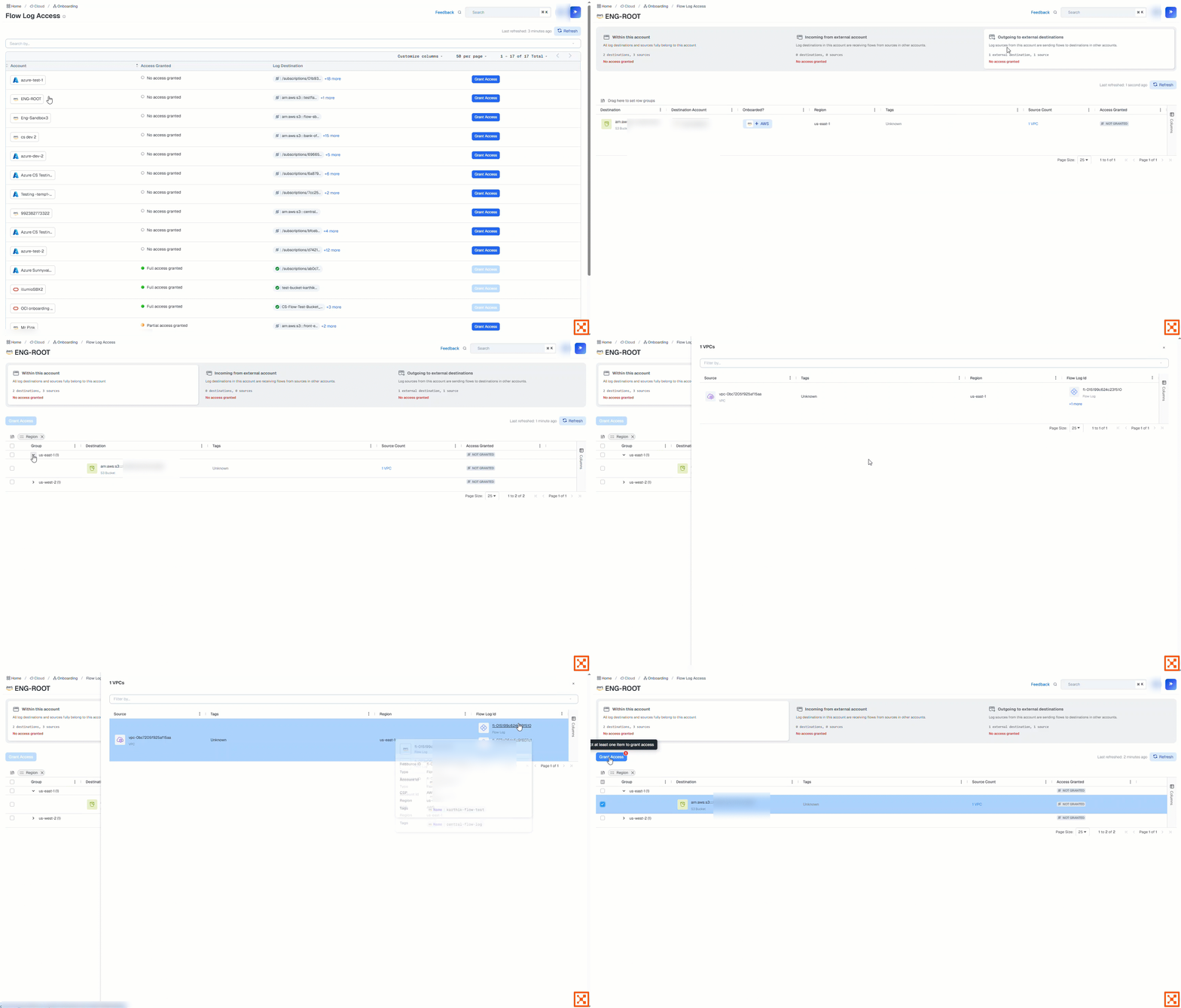
Review flow log access details
Find the Account name you want and click on that row.
Organize your log destinations and sources if you have several.
Select from the tiles to show only resources with the following flows. Each tile indicates the access granted status and lists the number of sources and destinations.
Within this account tile. Both the flow sources and flow destinations are in the same account.
Incoming from external account tile. The flow destinations receive flows from sources in other accounts in your environment.
Outgoing to external destinations tile. The flow sources send flows to destinations in other accounts. This can include accounts outside your environment.
Group your destinations by Region or Access Granted
Drag and drop the column heading to the 'Drag here to set row groups' text.
Click checkboxes to select and deselect destinations. For example, for one tile you may want to group all destinations that don't have access, so that you can grant access to all of them simultaneously.
Review the details for each account. Click on a Source Count entry to see which sources are sending flow logs to this destination, and to see details like the region, tags, and so on for each of the sources.
Access is not granted by default, but you will still see the Flow Log ID, VPC, S3 Bucket, Region, etc.
Once you grant access, you will see either Full access or Partial access Granted in the Access Granted column
Review your cloud account settings for any child flow logs that are listed as not granted in the access details
Refresh the Flow Log Access Details page immediately after granting access to make sure that the updated status
You can elect multiple destinations from the Within this account and the Incoming from external account tiles, but not the Outgoing to external destinations tile
Checkboxes for grouping by access are available only to users with write access.
Review Prerequisites for granting flow log access to OCI and grant flow log access.