Labels Restrictions for Kubernetes Namespaces
At a high level, creating policy for containerized applications functions in the same basic way as for other types of applications running on bare-metal servers and virtual machines protected by the Illumio Core. Container workloads are assigned multi-dimensional labels to identify their roles, applications, environments, locations (RAEL), or other custom label types. These labels can then be used to apply security policies to specific parts of the containerized application environment. The PCE converts these label-based policies into rules that can be applied to the container workloads.
In previous releases, the PCE supported two options for assigning labels to container workloads:
When creating or editing a container workload profile in the PCE web console or by using the Illumio Core REST API, an Illumio administrator assigned labels for the resources in that Kubernetes namespace.
The Illumio administrator did not assign labels in the container workload profile. The DevOps/SRE team could use custom annotations in the service and deployment manifest files (YAML) to apply labels to the pods and services running in a namespace. On receiving this information from Kubelink, the PCE applied these labels to the container workloads, as long as the labels matched existing labels in the PCE.
These two ways of assigning labels for container workloads are sufficient for most container segmentation uses cases; however, this approach lacks the flexibility with label assignment for namespaces requested by Illumio customers. However, there is an alternative in addition to those two options that still allows developers/DevOps teams to assign their own labels for Kubernetes pods and services, but at the same time restricts the list of labels that they can assign. Illumio administrators now have a way to control which labels can be assigned by the developers managing their Kubernetes environments.
Options for Assigning Labels with a Container Workload Profile
You assign labels with container workload profiles in a number of ways:
By creating a new container workload profile; see Manual Pre-creation of a Profile.
By editing a container workload profile that was dynamically created in the PCE when Kubelink imported a new Kubernetes namespace; see Dynamic Creation of a Profile.
By specifying label assignments in the default settings for the container workload profile template; see Configure New Container Workload Profiles.
Previously, four standard label types were predefined (Role, Application, Environment, and Location) for setting labels with a container workload profile. Now you can define custom label types and values in addition to these four predefined labels. You also have the following options:
Do not allow a label for a specific label type (the “None” option).
Allow developers to assign any label from Kubernetes for a specified label type (the “Use Container Annotations” option); so long as the labels match ones in the PCE.
In previous releases, when the PCE administrator left the labels unassigned in the GUI or through the REST API, labels specified in annotations were used. Now the “Use Container Annotations” option is selected by default for all labels in a container workload profile (provided the default settings for the cluster are not configured).
Specify a list of labels that are allowed for that label type.
Fix a label to a specific label for that label type (the “Assign Label” option).
Example: Assigning Labels with a Container Workload Profile
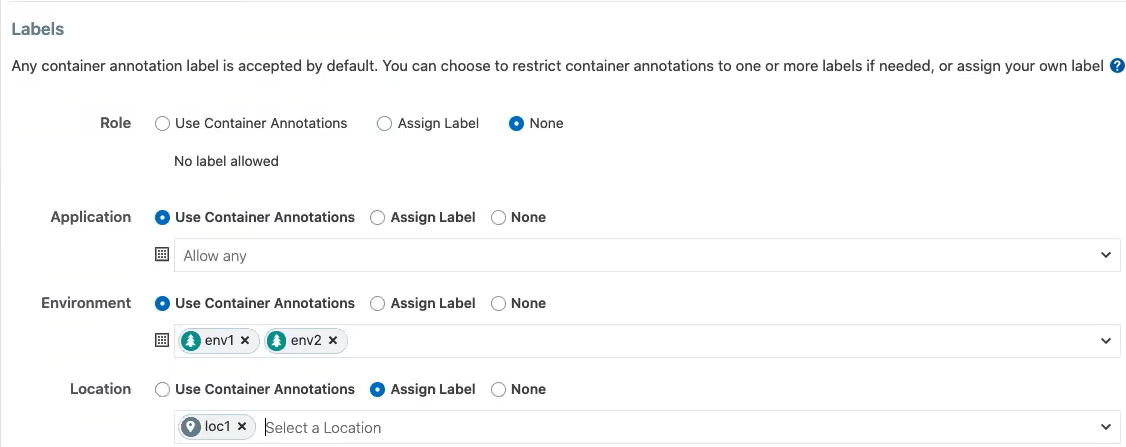
The following example shows how you can use each of the four standard predefined options:
Adding, Editing, or Removing Labels
To add one or more labels:
Click a profile name, then click Edit.
To apply the same label edits to multiple profiles, click the checkboxes for the desired profiles (or click the topmost checkbox in the table heading to select all profiles), then click Edit Labels.
Under the Labels heading, add a label type by clicking the field under the Label Type heading and then choose a label type from the list.
Choose a Label Assign Type:
Use Container Annotations - Use label values for container annotations. See Using Annotations for more information.
Assign Label - Explicitly set labels from the values configured for this label type.
No Label Allowed - Prevent this label type from being used in this profile.
Specify labels for this label type by clicking the field under Labels Allowed/Label Assign, and choosing a label from the list.
Any label type defined from annotations or explicit assignments must also have a label value specified in order to add the label definitions to the profile.
Click Save when finished.
To remove label types (and their associated label values):
Click the profile name.
Click Edit.
Under the Labels heading, choose one or more types to delete from this profile by clicking the checkboxes in front of the Label Type name.
Click Remove.
To remove or change label values:
Click the desired profile name.
Click Edit.
In the Labels table, remove a label value by clicking the small "x" near the label name under the Labels Allowed/Label Assign column.
You can replace or add label values by clicking the Select Labelor Select Labels field under Labels Allowed/Label Assign column, and then choosing the new label (or in the case of Annotations, multiple labels).
Click Save.
General Label Guidelines
Specifying a Role label in Kubernetes is not allowed; essentially, the Role label annotation (
com.illumio.role:) is ignored when passed at runtime and reported by Kubelink to the PCE. The PCE ensures that a label is not assigned for the Role label key for the resources in this Kubernetes namespace.
Developers can specify any label for Applications, so long as the label matches a preexisting label in the PCE.
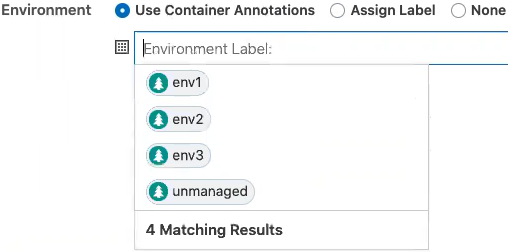
For Environment, a list of two labels (env1 and env2) is available. Developers can set either of these labels in Kubernetes. If a developer sets another value for the Environment label as a Kubernetes annotation, the PCE considers it invalid and, as a result, a label is not assigned to that label key. Because the wrong label is assigned, the policy will not allow expected traffic from other services or applications with the Environment label env1.
The Location label is fixed as the loc1 label. If a developer assigns another Location label (for example, loc3, which is a label in the PCE) or the developer leaves the Location label empty, the PCE overrides what the developer has specified in the annotation and the PCE assigns loc1 for the Location label.
The label assignments for that namespace appears in the Container Clusters list in the PCE web console.
For this example, you can see the label assignments mirrored in the Kubernetes annotation for the namespace:
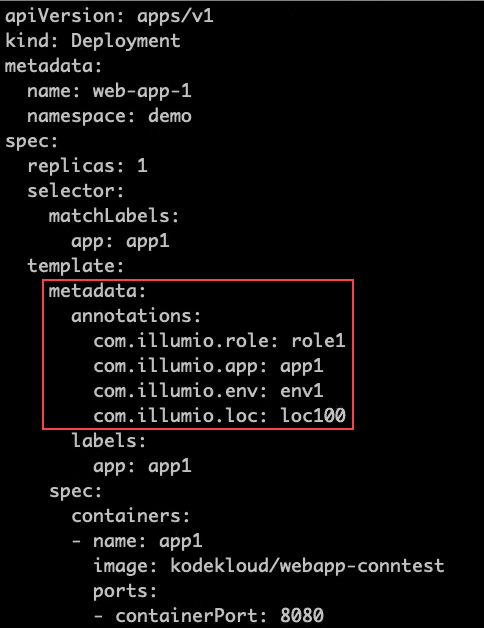
Where a developer set role1, app1, env1, and loc100 for the labels in the annotations. Kubelink passes this data to the PCE at runtime. The PCE ignores the Role label because it's not allowed. It accepts the Application and Environment labels. It ignores the loc100 label and uses loc1 instead.
In the Container Workloads tab, you can see how the label assignments are applied for the pod in this example.
Note
If a developer sets another value for the Environment label as a Kubernetes annotation, the PCE considers it invalid and, as a result, a label is not assigned to that label key. Because the wrong label is assigned, the policy will not allow expected traffic from other services or applications.
For example, in the Kubernetes annotations, a developer leaves the Environment label empty or specifies env100, the PCE uses the following labels for the namespace and you won't have policy for applications or services with the Environment label env1.
Effect of Upgrading the PCE to Core 21.1.0 or Later
After upgrading your PCE to Core 21.1.0 or later, the labels assignments for your Kubernetes namespaces are not impacted operationally. However, you will see changes in the PCE web console and in the REST API.
The values set in the PCE in the previous Core release are unchanged and the “Assign Label” option is selected in the PCE web console and through the REST API.
The values left open so that container annotations were used for label assignments are updated to the “Use Container Annotations” option and the label assignments won't be restricted by any settings in the PCE web console or through the REST API.