Integrate the Illumio PCE with IBM i running Precisely Assure Security
This topic describes how to integrate the Illumio PCE, NEN, and Flowlink with IBM i Power System(s) running Precisely Assure Security.
Because IBM i Power Systems cannot run the Illumio VEN, standard VEN-based enforcement is not possible. This integration closes that gap by using Precisely Assure Security as the enforcement point. The Illumio NEN converts PCE policy into a Precisely-formatted CSV file that Assure Security applies in the IBM i environment. Assure Security returns traffic flow data to Illumio through FlowLink, giving the PCE full visibility into IBM i traffic for policy refinement and compliance reporting.
Differences from typical NEN swith integration
This integration differs from the typical NEN switch deployment in the following ways:
Although the IBM i Power System is not a switch, this solution uses the PCE switch integration user interface to perform the integration.
Instead of converting PCE policy into ACLs as done in a typical switch integration, the NEN in this solution generates a Precisely-formatted CSV file to configure relevant policy on your IBM i system that is running Precisely.
Note
For the most up-to-date information about configuring Precisely Assure Security for this integration, see the Precisely document Commands for the Assure SAM integration with Illumio.
Integration prerequisites
Illumio
PCE 21.5.10 or later
NEN 2.3.10 or later
Flowlink 1.1.2+H2 or later
Precisely Assure Security v.6.0.24 or later
IBM i 7.4 or later
Integration components
In addition to the IBM i Power System, this integration includes these components:
Component | Role |
|---|---|
Precisely Assure Security | Precisely Assure Security is a security product that runs natively on IBM i systems, providing access control, activity monitoring, and data protection. In this integration, Precisely Assure Security serves as the enforcement point for IBM i workloads: it applies PCE policy in the form of a Precisely-formatted CSV file delivered by the Illumio NEN and returns network flow data to the PCE via the Illumio Flowlink server, providing traffic visibility across IBM i systems. |
Illumio PCE (Policy Compute Engine) | The centralized, multi-tier management brain of the Illumio platform. Acting as the control plane, it aggregates network traffic data, computes security policies, and in this specific integration, distributes those instructions to the Network Enforcement Node (NEN). While the NEN typically manages physical switches and load balancers, this integration extends control to environments that cannot host a standard agent, such as IBM i Power System, by converting security intent into platform-specific configurations. |
NEN (Network Enforcement Node) | The Network Enforcement Node (NEN) is an Illumio Core component, deployed alongside the PCE, that extends policy enforcement and traffic visibility to network devices and workloads where VEN installation is impractical or impossible. It receives policy from the PCE and translates it into device-native formats: ACLs for switches and routers, firewall rules for load balancers, and CSV-based access control rules for IBM i systems running Precisely Assure Security. Traffic flow data collected by Assure Security is returned to the PCE via the Illumio Flowlink server, providing visibility into IBM i traffic. Network devices are not configured automatically; the NEN requires manual configuration of each managed device. For more about the Illumio NEN, see Overview. |
Illumio Flowlink | Illumio's flow ingestion server. It receives traffic flow records from external sources (including Precisely Assure Security) and feeds them to the PCE for visibility and policy refinement. |
Data flows in this integration
The integration operates across two distinct data flows: one for policy enforcement and one for traffic visibility.
Policy enforcement flow (PCE to IBM i):
The PCE defines segmentation policy for the IBM i workload.
The NEN translates that policy into a Precisely-formatted CSV file containing IP-based access control rules.
Precisely Assure Security applies the CSV file natively on the IBM i.
Traffic visibility flow (IBM i to PCE):
Assure Security collects network flow data on the IBM i system.
Assure Security sends the flow records to the Illumio Flowlink server.
Flowlink receives traffic flow records from Precisely Assure Security and feeds them to the PCE for visibility and policy refinement.
The PCE ingests the flows, displays them on the traffic map, and uses them to inform and validate policy.
This is an agentless, network-side enforcement model. Rather than a VEN enforcing policy inside the operating system, Assure Security acts as the enforcement proxy on IBM i's behalf.
Add unmanaged workloads and IBM i definitions
To create a security policy, add unmanaged workloads in the PCE representing each IBM i system included in the PCE policy. The NEN generates a set of CSV data for each configured IBM i unmanaged workload.
To define the IBM i system and the workloads attached to them as unmanaged workloads in the PCE web console, complete the following steps:
Log into the PCE web console.
Define the IBM i system as unmanaged workloads by adding an unmanaged workload through the PCE. You will associate these unmanaged workloads with their IBM i Precisely integration later. (For more about adding unmanaged workloads, see Adding Unmanaged Workloads in the Security Policy Guide.
Note
The workload name must be the IBM i system name in upper-case.
Illumio Core release 22.5 and earlier: Go to Workloads and VENs > Workloads . . . click Add > Add Unmanaged Workload
Illumio Core release 23.2 and later: Go to Servers & Endpoints > Workloads. . . click Add > Add Unmanaged Workload
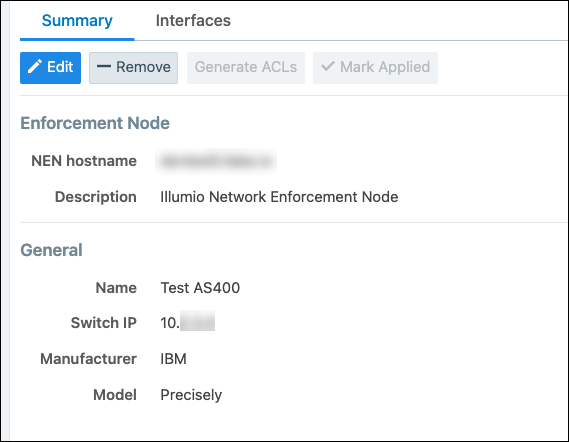
Define the IBM i integration and associated workloads in the PCE by going to Infrastructure > Switches.
Click +Add.
Enter the following information:
NEN hostname: This field is populated with the FQDNs of the NENs paired with your organization's PCE. Select the appropriate NEN.
Description: This field is populated with "Illumio Network Enforcement Node" and the FQDN of the NEN. You cannot edit this field.
Switch Name: Enter a unique name that's easy to remember.
Switch IP: IP address of the IBM i system.
Manufacturer: Select IBM.
Model: Select Precisely.
Click Save.
Click Interfaces.
Click Edit and then enter details:
Total Interfaces: 1
Interface 1: Enter a name, such as interface 1.
Workloads: Select the unmanaged workload representing the appropriate IBM i system. Only workloads assigned to the IBM i system interfaces are secured. You can attach one or more workloads to an interface.
Monitor Traffic: Ignore this setting. It doesn't apply to this integration.
Click Save.
Note
If your unmanaged IBM i system has two or more network interfaces, the generated ACL file will include duplicate entries for Inbound Rules, one pair of entries for each interface. This is expected behavior.
Fields in the PCE web console > Infrastructure > Switches > Add Switch page: