Adding the API Connector
Important
You must have onboarded using the Log Exporter before you can add the API Connector.
Use the API Connector to allow the Illumio application to collect policy information automatically from Palo Alto Networks and to make sure that the intelligence that the Illumio application generates is reflected in the Palo Alto Networks firewall.
Navigate to the Connectors page and click + Add on the Palo Alto Networks tile.
On the Palo Alto Networks Connector page, click + Add API Connector.
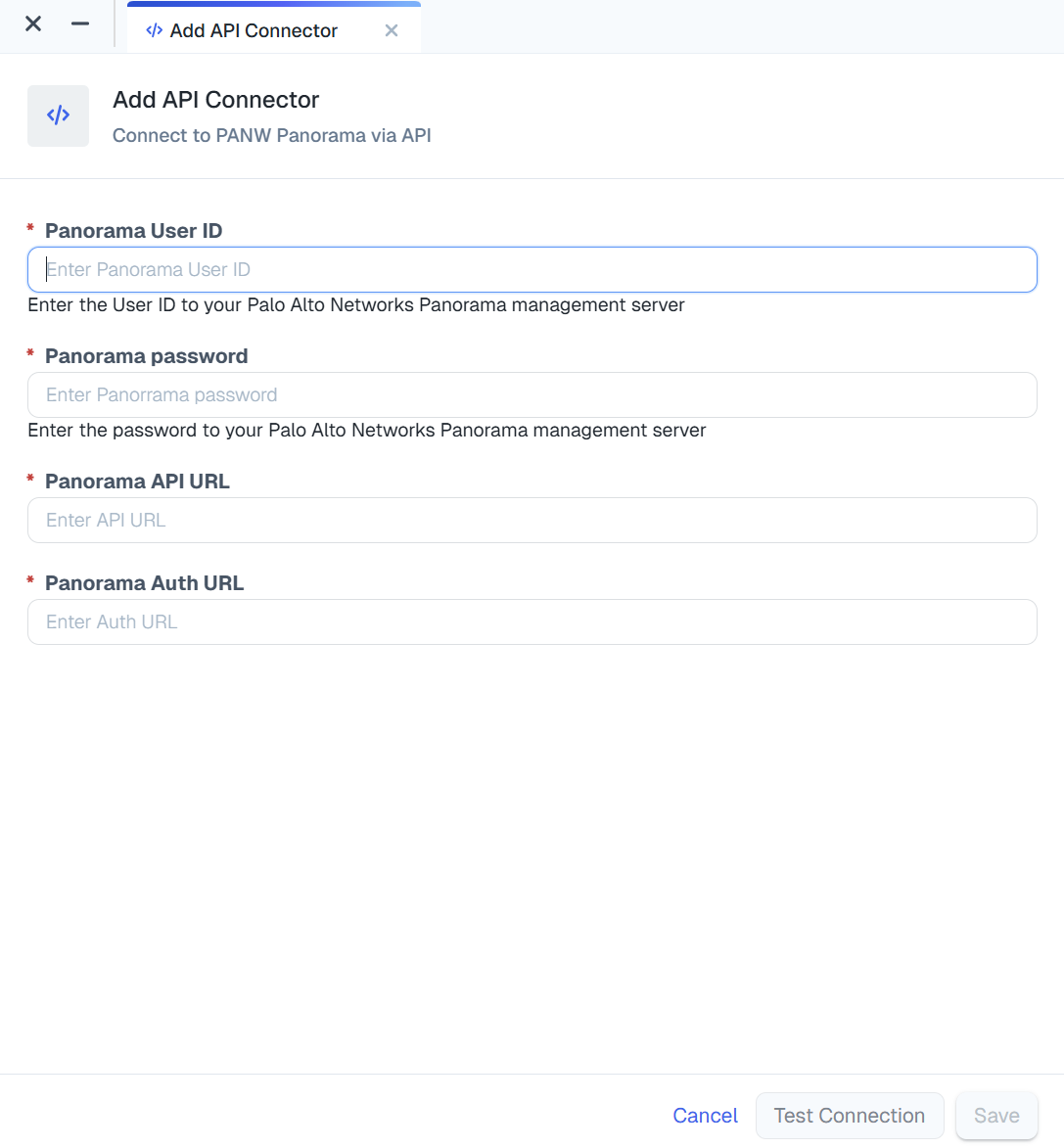
In the Add API Connector pane, do the following:
Enter your Panorama username and password in the Panorama User ID and Panorama Password fields.
Enter the URL of your Panorama instance in the Panorama API URL field.
Enter the auth URL in the Auth URL field. This value is your API URL, followed by
?type=keygen.
Important
These values are encrypted and stored in a secure vault.
Click Save.
The values that you entered display in the API Connector pane.
Note
To test the connection, click Test Connection.
If you need to edit any of the API information, click Edit API Connector.