AWS Onboarding Troubleshooting Tips
Having onboarding issues? Use these troubleshooting tips to resolve your onboarding errors.
Onboarding Status
The Onboarding page summarizes onboarding statuses as one of the following:
Status | Description | Action |
|---|---|---|
Complete | Accounts have both resource access and flow log access fully enabled. These accounts are fully onboarded and ready for monitoring and insights. | No action required |
Partially Complete | Accounts have resource access enabled, but flow logs are missing, disabled, or only partially enabled. | Click the Issues column for details and how to troubleshoot. |
Incomplete | Accounts are missing either resource access, flow log access, or both. | Click the Issues column for details and how to troubleshoot. |
To filter the Onboarding Status table, click a status cards at the top of the page.
Onboarding Setup Errors
Onboarding Wizard Did Not Complete
Onboarding Wizard Did Not Complete: Continue your onboarding tasks.
CloudFormation Task Errors
CloudFormation Stack Deployment in Progress
Wait for the AWS CloudFormation stack creation to complete.
This can take about 10 minutes.
In AWS CloudFormation, monitor the Events tab for errors.
If stack creation completes and Illumio Onboarding does not update, the Illumio Lambda function might have produced an error.
Check CloudWatch Logs for the Illumio callback Lambda function for errors:
Navigate to CloudWatch.
Click Log management.
Search Log groups for IllumioCloudAPICallFunct.
Click the Log group for the Lambda function for IllumioCloudAPICallFunct.
Click the Log stream.
Search for "Status":"FAILED".
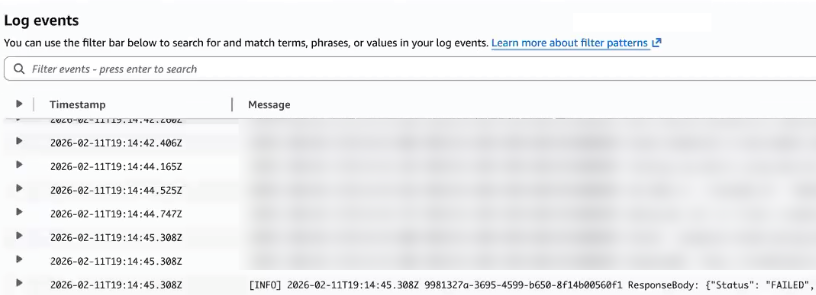
If the callback Lambda function failed, return to the Illumio Onboarding wizard.
In the Illumio Onboarding wizard's Set up Access step, click Create IAM Roles on AWS.
In the AWS CloudFormation Quick create stack page, enter a new stack name, acknowledge the capabilities, and click Create Stack.
Complete the onboarding.
StackSet Deployment in Progress
In AWS CloudFormation StackSets, wait for all stack instances to reach CURRENT status.
For failed instances, check the Operations tab for error details.
Fix common errors:
Verify that CloudFormation is enabled for the target storage accounts in CloudFormation Console > StackSets.
Verify the IAM permissions for the member accounts.
In AWS CloudFormation > StackSets, select the StackSet that contains failed instances.
From the Actions menu, select EditStackSet details to rerun the operation.
On the Specify template page, choose Use current template.
Follow the wizard and accepting existing parameters on the Specify stack details page.
On the Set deployment options page, confirm the settings.
On the Review page, acknowledge the required IAM capabilities and submit.
After all instances complete, verify that Illumio received the callback.
CloudFormation Stack Deployment Failed
Identify the root cause from the CloudFormation Events tab.
For IAM conflicts:
In AWS Console, navigate to Roles.
Search for and click the IllumioCloudIntegrationRole.
In the resulting page for that role, click Delete and enter the role name to confirm deletion.
Rerun the onboarding process from the Illumio Console.
For 401 issues on cloudwatch logs when calling Illumio's API, check the
tenantId,serviceAccountKeyIdandserviceAccountKeyTokenpairs. Make sure these match the contents of the Illumio Service Account credentials you downloaded.Rerun the onboarding process from the Illumio Console.
Inventory Onboarding Errors
Credential Error (Status Code 401)
If the required IAM role is missing, run the Illumio‑provided CloudFormation template. This recreates the required IAM role with the correct permissions and trust policy.
If there is an External ID mismatch, open the AWS Console and go to :IAM → Roles → [Your Illumio Role]
Select the role and open the Trust relationships tab.
Click Edit trust policy.
Locate the sts:ExternalId entry and update its value to match the correctserviceAccountKeyId provided by Illumio for download from the onboarding wizard.
Save your changes.
Permission Error (Status Code 403)
Browse to the Permissions for Onboarding AWS topic in the Illumio documentation.
Download the permissions file from the Updating AWS permissions on the Assume Role section.
In AWS, navigate to IAM > Roles.
Search for and click the IllumioCloudIntegrationRole.
Click IllumioCloudAWSIntegrationPolicy.
Copy any missing permissions from the downloaded permissions file and paste them into the policy.
Click Next.
Click Save changes.
Flow Errors
Insufficient S3 Permissions
In the IAM console, go to Roles, and then select the Illumio role.
Open the Permissions tab.
Modify the IllumioCloudBucketListPolicy policy:
Add your flow log S3 bucket ARNs to the Resource list:
arn:aws:s3:::your-flow-log-bucket-name
arn:aws:s3:::your-flow-log-bucket-name/*
Update the IllumioCloudBucketGetLocationPolicy and IllumioCloudBucketReadPolicy policies with the same ARNs.
(Optional) Rerun the Illumio CloudFormation template to automatically update all required permissions.
Confirm that the S3 bucket policy does not contain any explicit deny statements that apply to the Illumio role.
Flow Log Configuration Missing Required Fields
In AWS Console, navigate to VPC > Flow Logs.
Note the current flow log configuration (destination, filter, and so on).
Delete the incompatible flow log:
Create a new flow log with the required format:
Click Create flow log.
Select the same VPC.
Choose Custom format and include all required fields.
Use the same S3 destination bucket.
Incorrect Flow Log File Format
In the AWS Management Console, open VPC, select your VPC and then select Flow logs.
Review and record the existing flow log configuration details.
Delete the flow log that uses the Parquet log file format.
Create a new flow log:
Select Create flow log.
Configure the log with the same VPC, subnet, or ENI, and use the same S3 destination.
In Log record format, select Custom and Select all.
In Log file format, select Text.
Verify that all required fields are included in the configuration.
Flows Partially Enabled
Navigate to Illumio Console > Cloud > Onboarding > Flow Log Access.
Identify the S3 buckets with pending access.
Click Grant Access for each pending bucket.
Click the link provided in the Illumio dialog box and run the CFT.
Flows Not Reachable
In the AWS Management Console, go to AWS Organizations.
Select Policies.
Select Service control policies.
Locate the Service Control Policy (SCP) that is preventing Illumio from accessing Amazon S3.
Update the SCP to allow the Illumio IAM role to access the required S3 resources in one of the following ways:
Add a condition that exempts the Illumio IAM role ARN.
Update the existing deny statement to exclude the S3 actions required by Illumio.
Save and apply the updated SCP.
Allow a few minutes for the policy changes to propagate across the organization.
In the Illumio Console, verify that flow ingestion resumed.
Flows Not Enabled
In the AWS Management Console, open VPC, select your VPC and then select Flow logs.
Create a new flow log:
Select Create flow log.
Configure the log with the same VPC and use the same S3 destination ARN.
In Log record format, select Custom and Select all.
In Log file format, select Text.
Verify that all required fields are included in the configuration.