Grant flow log access to your AWS instance
Learn how to allow Illumio Segmentation for the Cloud access to flow logs of cloud service providers.
Learn how to allow Illumio Segmentation for the Cloud access to your AWS cloud account flow logs.
To set up flow logs before you grant flow log access, see Set up flow logs in your AWS environment.
To review your destinations before granting flow log access, see Review destinations before granting flow log access.
Grant AWS flow log access
Go to the Onboarding page to grant flow log access.
For AWS, enable SG flow logs.
First review your flow log access to determine whether you see the flow logs that you expect.
AWS
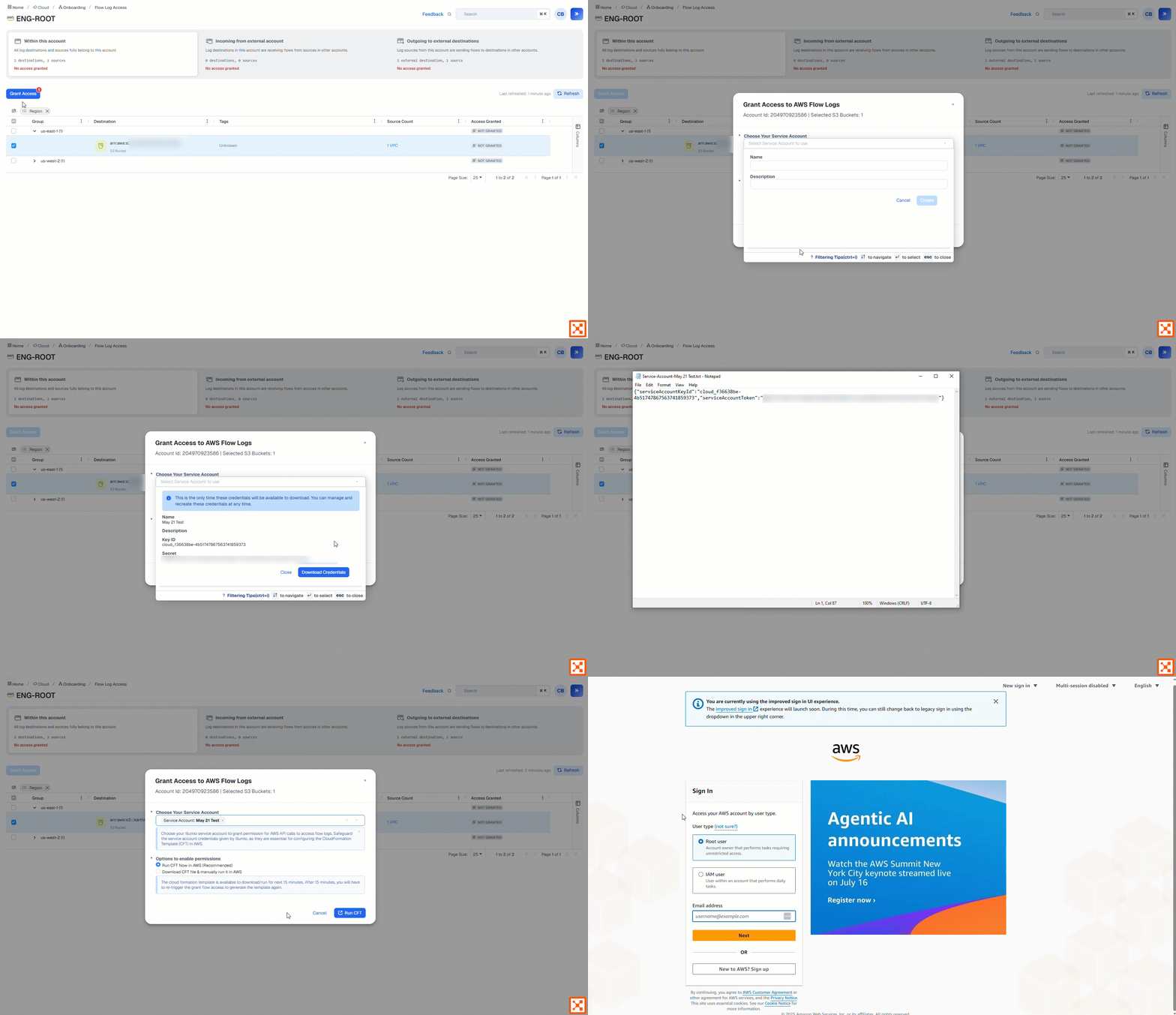
Granting AWS flow log access
Click Flow Log Access on the Onboarding page to open the Flow Log Access page.
Find the account name you want.
Grant access by first selecting individual or grouped accounts.
Confirm that the flow log destinations you want are selected. If you wish to grant access to flow log destinations within this account or incoming from external accounts:
Click Grant Access and use the above prerequisites information in the Grant Access... dialog box, as explained in the in-application help.
Note
To grant access to external flow log destinations:
Click the Outgoing to external destinations tile.
Browse to Onboarding > Flow Log Access and find the account that contains the destination resource.
Click Grant Access and use the prerequisite information in the Grant Access... dialog box, as explained in the in-application help.
Limitations for granting flow log access to AWS
To get traffic flow visibility in the Illumio Segmentation for the Cloud Map and Traffic pages, you need to provide access to flow logs. Once the flow logs are configured in the cloud console, the flow details will be displayed in the flow log access page of Illumio Segmentation for the Cloud. By granting access to flow logs, you will allow Illumio Segmentation for the Cloud to read the flows and provide details about network traffic in the traffic page.
Note
To grant access to flow logs stored in a different account than the one you onboarded, you must also onboard the account containing those flow logs. See Onboarding AWS Cloud.
For example, do you have central log storage or cross-account storage? This is where flow logs generated from one account are stored in a destination belonging to another account.
Note
Regarding AWS flow log access: Once you select your S3 buckets and Illumio generates a Cloud Formation Template, the template is available to download or run for only 15 minutes. After 15 minutes, you have to re-start the grant flow log access process to generate the template again.
Note
The following are known limitations of Cloud's flow log reading capability:
In AWS, Illumio Segmentation for the Cloud supports reading flow logs that are stored in S3 buckets only. Currently, other storage destinations are not supported.
If the VPC/VNet flow logs from one account are configured to be stored in S3/storage accounts in another account, then the destination account should be onboarded into Illumio Segmentation for the Cloud. If the account that owns the S3 bucket is not onboarded, Illumio Segmentation for the Cloud will not be able to fetch the flow logs of that S3 bucket.
Review destinations before granting flow log access
Review your destinations before allowing Illumio Segmentation for the Cloud access to your cloud account flow logs.
Review flow log access in Illumio Cloud
Review your flow log access to determine whether you see the flow logs that you expect. Click Flow Log Access on the Onboarding page.
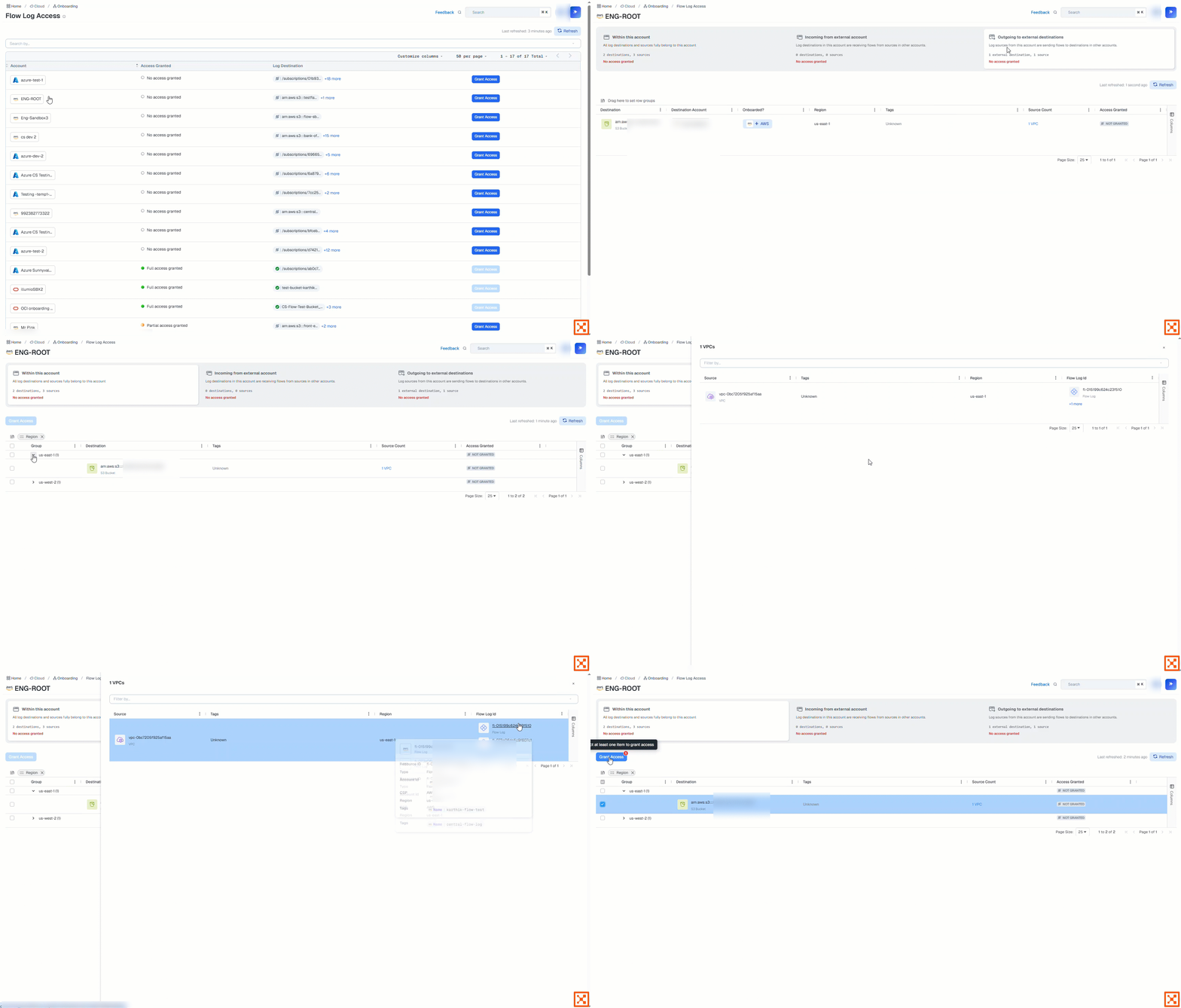
Review flow log access details
Find the Account name you want and click on that row.
Organize your log destinations and sources if you have several.
Select from the tiles to show only resources with the following flows. Each tile indicates the access granted status and lists the number of sources and destinations.
Within this account tile. Both the flow sources and flow destinations are in the same account.
Incoming from external account tile. The flow destinations receive flows from sources in other accounts in your environment.
Outgoing to external destinations tile. The flow sources send flows to destinations in other accounts. This can include accounts outside your environment.
Group your destinations by Region or Access Granted
Drag and drop the column heading to the 'Drag here to set row groups' text.
Click checkboxes to select and deselect destinations. For example, for one tile you may want to group all destinations that don't have access, so that you can grant access to all of them simultaneously.
Review the details for each account. Click on a Source Count entry to see which sources are sending flow logs to this destination, and to see details like the region, tags, and so on for each of the sources.
Access is not granted by default, but you will still see the Flow Log ID, VPC, S3 Bucket, Region, etc.
Once you grant access, you will see either Full access or Partial access Granted in the Access Granted column
Review your cloud account settings for any child flow logs that are listed as not granted in the access details
Refresh the Flow Log Access Details page immediately after granting access to make sure that the updated status
You can elect multiple destinations from the Within this account and the Incoming from external account tiles, but not the Outgoing to external destinations tile
Checkboxes for grouping by access are available only to users with write access.
Review Prerequisites for granting flow log access to AWS and grant flow log access.