Global Map
This topic describes the purpose of the Illumio Global Map page, found in the left navigation menu. Visualize workloads that form logical groups (based on labels attached to workloads) and to better understand the traffic flows between workloads.
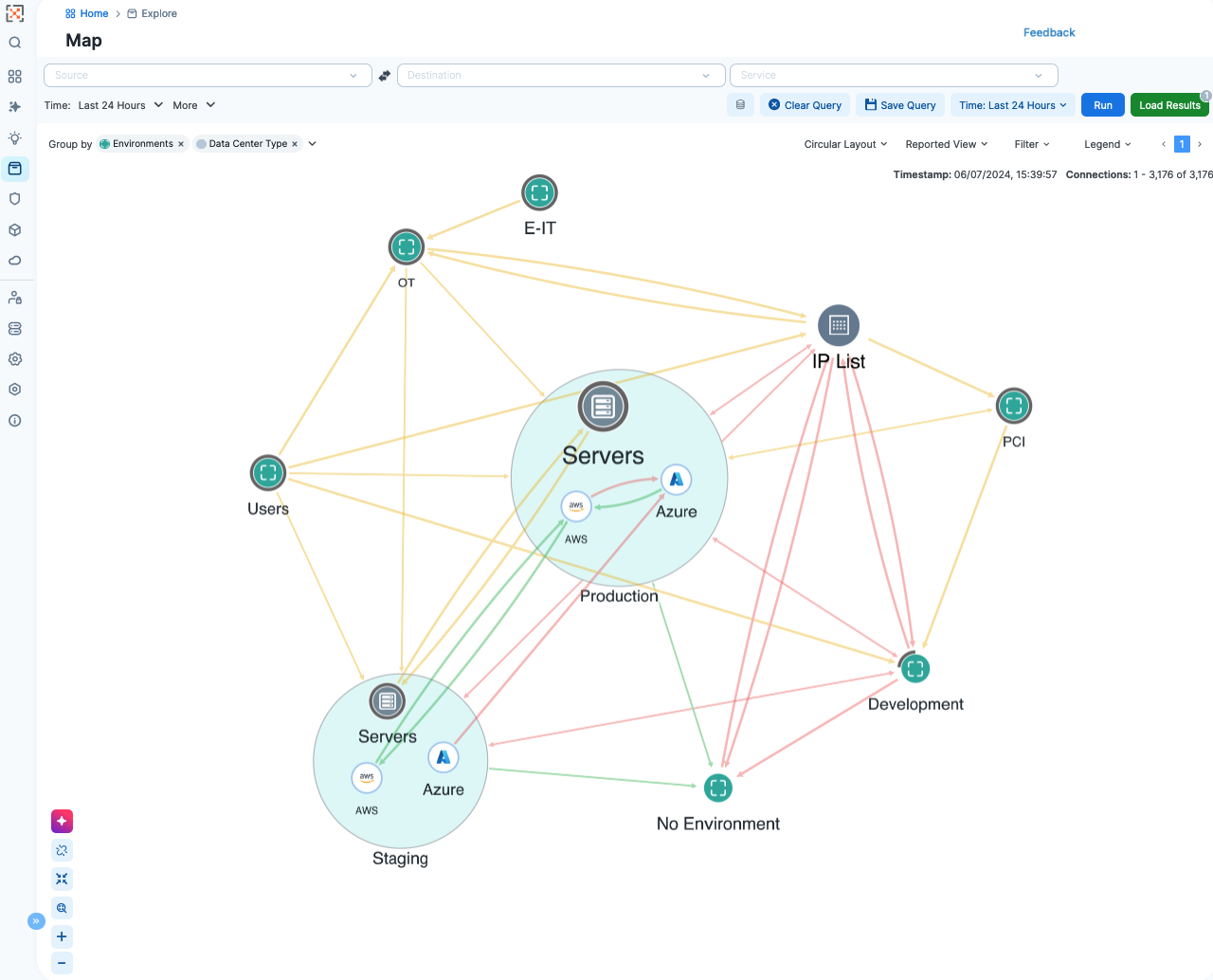
You can hover your mouse over a cloud item, such as a region. Illumio will display information about it such as the number of resources and applications. Right-click items to see additional details.
Left-click items to write policy for them. See Writing Organization Policy.
Grouping in the Global Map
Groups represent a collection of workloads or services that communicate with each other and for which you can write rules. Groups are displayed in the Map after you pair workloads.
The Global Map displays three different types of groups: a group based on a single label, an app group, or a common set of labels.
Once you pair VENs to create workloads or connect to cloud accounts to get the cloud resources and traffic logs, PCE analyzes the workload data and the traffic data. Based on the traffic flows among your workloads, the Map organizes them into groups. A group could represent an instance of an application running in your data center, such as an HRM application running in the Test environment in your North America data center, or a Web store in Production with its web workloads hosted in AWS and its databases hosted in your private data center.
The Global Map lets you group by labels, locations, app groups, etc. It also lets you split the view when in Map view mode by selecting items on the Map.
Configurable Grouping
The Group by menu allows you to specify different levels of grouping, such as grouping by types of labels and their order. You might want to group by OS and then by environment. If you do not specify a particular grouping, Illumio groups workflows that have the same set of labels. You can change your default grouping through the Group by menu.
Note
For optimal scale and performance, if there are two connections with the same source workload, destination workload, destination port, and protocol but the process or service names are different, the two connections are combined in the Map. The process or service name that was part of the most recently reported connection is displayed.
Tips for Grouping in Your Map
Each group is a label set. Every workload which has the same set of labels is grouped into one of those label-sets.
Mousing over a group displays a pop-up dialog box with the list of labels and the number of workloads using the labels.
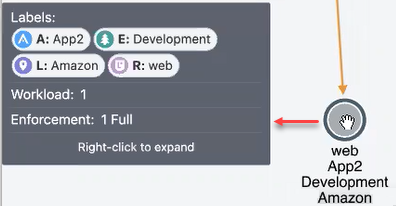
In the Group by drop-down list, you can drag and drop labels in the list to re-order how group display. Labels at the top of the list control the prominence of those groups .
The UI displays the groups using the colors you've selected for your labels. Use these colors to help orient yourself on the Global Map.
Global Map Layout Options
You can choose how the UI displays the Global Map:
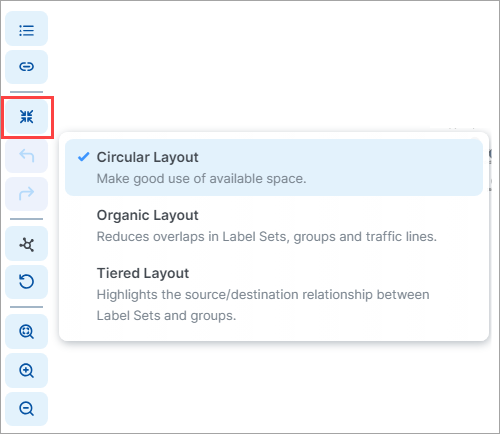
Not every layout choice is good for your data. See the descriptions of each layout in the Layout menu.
For example, the Organic Layout option attempts to organize groups so that the workloads that are connected are grouped together and displays less cross traffic. Workloads that are communicating are grouped together on one side of the Map and the traffic links aren't crossing as much.
The Tiered Layout option provides a sense of traffic flow from top to bottom. The Tiered Layout option is better for smaller data sets than larger ones.
Panels in the Global Map
Tip
Use the drop-down selector above the panel to switch between the Policy Data and Vulnerability Data modes.
When you click an object in the Global Map, a side panel opens on the right that contains a number of tabs.
Summary Tab
The Summary tab displays information about the selected object. To view the Summary tab, click an item on the Map. The information displayed depends on the type of object you clicked and how deeply you've drilled into the object. For example, when you click a group in the Map, the Summary tab displays the labels in use, the number of workloads and virtual services, and the enforcement level. In general, the deeper you drill into an object, the more detailed information that is displayed in the side panel.
Traffic Tab
The Traffic tab is a summary version of the main Traffic table and filtered by what you've selected in the Map. The Traffic tab appears regardless of what you select in the Global Map: group types, workloads, IP lists, private addresses, public addresses, or links. By default, the Traffic tab displays the following columns.
Policy Decisions (reported and draft)
Source Labels
Destination Labels
Destination Port Processes
You can add additional columns by selecting options from the Customize columns drop-down list:
Source Port/Process User
First Detected
Flows/Bytes
Last detected
Workloads Tab
The Workloads tab displays a list of all workloads in the selected group and the following information for each workload:
Connectivity
Enforcement
Visibility
Name
Policy Sync status
Ransomware Exposure
Protection Coverage Score
Labels
When the policy was last applied
As you drill in and out of the groups in the Map, the Workloads tab adjusts to show the workloads in the super set group.
Virtual Services Tab
The Virtual Services tab displays a list of all Virtual Services in the selected group. A drop-down selector allows you to filter the list by Virtual Services with Traffic or All Group Virtual Services. The list provides following information for each virtual service:
Name
Provision Status
Service/Ports
Addresses
Labels
Workloads / Container Workloads
Description
You can add or remove columns by using the Customize columns drop-down list.
Reading the Global Map Symbols
There are two legends for the side panel, one for Policy Data mode and another for Vulnerability Data mode. You can use the drop-down selector above the panel to switch between these modes.
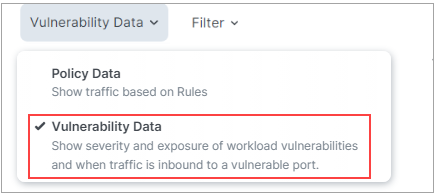
Legend - Policy Data
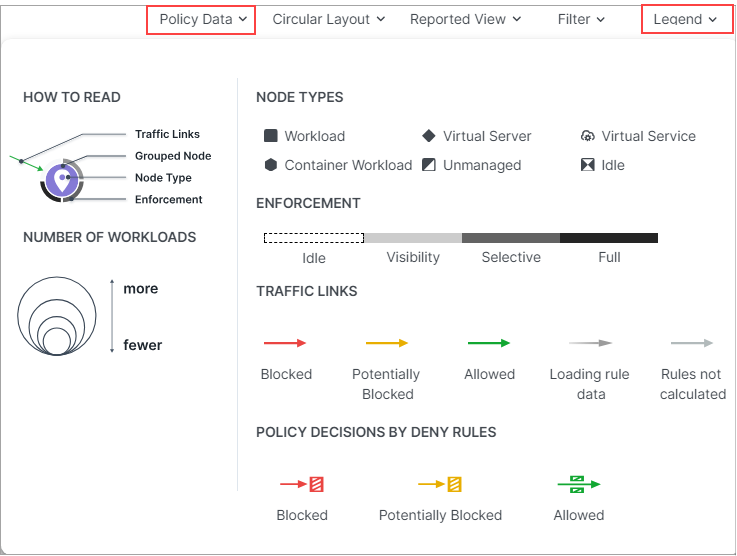
Symbols Explained
Number of Workloads (Policy Data and Vulnerability Data modes)
The relative size of each node indicates the number of workloads in the node.
Enforcement (Policy Data mode)
Pay attention to how the Map groups designate the enforcement mode for groups:
Workloads and groups inside fully dark lines are in FullEnforcement mode.
Workloads and groups inside semi-dark lines are in SelectiveEnforcement mode.
Workloads and groups inside light gray lines are in Visibility only mode.
Workloads and groups not surrounded by any of the above-described lines are in Idle mode.
The completeness of the ring around a group denotes the proportions of different enforcement states
As you navigate into the groups, you notice that the workloads also have borders indicating their enforcement modes.
Traffic Links (Policy Data mode)
Traffic links are presented with lines and arrows in different colors:
Red: Traffic is blocked
Yellow: Traffic is potentially blocked
Green: Traffic is allowed
Gradient arrows: The light color is next to the source and dark next to the destination. Gradient arrows are used while the rule data is still loading from the traffic.
Grey: Rules are not calculated
Reported View
The Illumio UI displays the traffic on the Global Map using red, orange, or green lines to indicate whether the workload had a rule that allows the traffic when the connection was attempted.
A green line indicates that the workload had an explicit rule to allow the traffic when the connection was attempted
A red line indicates that the workload did not have an explicit rule to allow the traffic when the connection was attempted
An orange line indicates that no explicit rule exists, but because of the enforcement state of the workloads the traffic is not blocked when provisioned.
Note
When a policy change occurs, only flows that are created after the policy change are displayed in red or green based on the new policy. Flows created before the policy change might continue to be displayed in red or green using the old policy.
If multiple rules allow traffic between entities, only one green line is displayed.
Rules created for existing or live traffic don't change the color of the traffic lines in the Reported view, even when they are provisioned, until new traffic is detected.
Draft View
This view also displays the traffic using red, green, and orange lines to indicate whether Illumio has a rule to allow the connection that was reported by the workload. This way, you can add rules and see their anticipated effect in real-time before the rules are implemented. In the Draft view , line colors have the following meanings:
A green line indicates that Illumio had an explicit rule (in either a draft or an active policy) to allow traffic when the connection was attempted.
A red line indicates that Illumio did not have an explicit rule (in either a draft or an active policy) to allow traffic when the connection was attempted.
An orange line indicates that no explicit rule exists, but because of the enforcement state of the workloads, the traffic will not be blocked when the rules are provisioned.
Filtering the Global Map
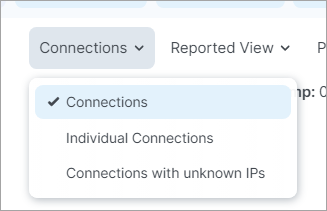
Connections Menu
When viewing the Traffic tab in on the Connections Menu allow you to view aggregated or individual connections.
Filter drop-down
Options in the Filter drop-down allow you to control which traffic information is displayed on the Global Map. This is useful for controlling the overall complexity of the visual information, making it easier to focus on the types of traffic you're interested in at any given time.
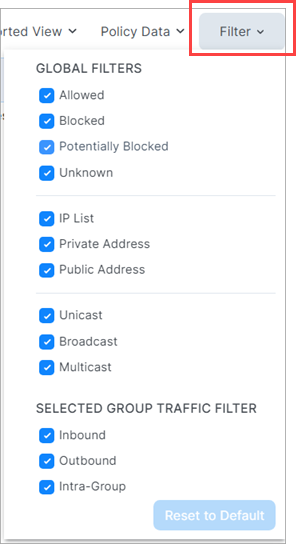
The Filter dropdown presents two types of filters:
Global Filters
These filters allows you to control the display of traffic for everything on the Global Map, whether selected or not.
Selected Group Filters
These filters allow you control the display of traffic only for the selected group on the Global Map.