PCE Storage Device Partitions
PCE Storage Device Layout
Runtime Parameters for Traffic Datastore on Data Nodes
For the traffic datastore, set the following parameters in runtime_env.yml:
traffic_datastore:
data_dir:path_to_second_disk (e.g. /var/lib/illumio-pce/data/traffic)
max_disk_usage_gb: Set this parameter according to the table below.
partition_fraction: Set this parameter according to the table below.
The recommended values for the above parameters, based on PCE node cluster type and estimated number of workloads (VENs), are as follows:
Setting | 2x2 | 2,500 VENs | 2x2 | 10,000 VENs | 4x2 | 25,000 VENs | Note |
|---|---|---|---|---|
| 100 GB | 400 GB | 400 GB | This size reflects only part of the required total size. See PCE Capacity Planning. The remaining disk capacity is needed for database internals and data migration during upgrades. |
| 0.5 | 0.5 | 0.5 |
For additional ways to avoid disk capacity issues, see "Manage Data and Disk Capacity" in the PCE Administration Guide.
Scale Traffic Database to Multiple Nodes
When deploying the PCE, you can scale traffic data by sharding it across multiple PCE data nodes. In this way, you can store more data and improve the performance of read and write operations on traffic data. The traffic database is sharded by setting up two coordinator nodes, each of which has at least one pair of worker nodes.
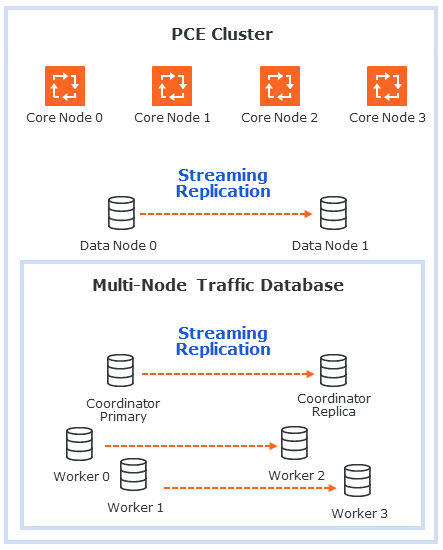
Hardware Requirements for Multi-Node Traffic Database
The following table shows the minimum required resources for a multi-node traffic database.
CPU | RAM | Storage | IOPS |
|---|---|---|---|
16 vCPU | 128GB | 1TB | 5,000 |
Cluster Types for Multi-Node Traffic Database
The following PCE cluster types support scaling the traffic database to multiple nodes:
4node_dx- 2x2 PCE with multi-node traffic database. The 2x2 numbers do not include the coordinator and worker nodes.6node_dx- 4x2 PCE with multi-node traffic database. The 4x2 numbers do not include the coordinator and worker nodes.
Node Types for Multi-Node Traffic Database
The following PCE node types support scaling the traffic database to multiple nodes:
citus_coordinator- The sharding module communicates with the PCE through the coordinator node. There must be two (2) coordinator nodes in the PCE cluster. The two nodes provide high availability. If one node goes down, the other takes over.citus_worker- The PCE cluster can have any even number of worker nodes, as long as there are at least two (2) pairs. As with the coordinator nodes, the worker node pairs provide high availability.
Runtime Parameters for Multi-Node Traffic Database
The following runtime parameters in runtime_env.yml support scaling the traffic database to multiple nodes:
traffic_datastore:num_worker_nodes- Number of traffic database worker node pairs. The worker nodes must be added to the PCE cluster in sets of two. This supports high availability (HA). For example, if there are 4 worker nodes,num_worker_nodesis 2.node_type- This runtime parameter can be assigned one of the valuescitus_coordinatorandcitus_worker. They are used to configure coordinator and worker nodes.datacenter- In a multi-datacenter deployment, the value of this parameter tells which datacenter the node is in. The value is any desired descriptive name, such as "west" and "east."
Set Up a Multi-Node Database
When setting up a new PCE cluster with a multi-node traffic database, use the same installation steps as usual, with the following additions.
Install the PCE software on core, data, coordinator, and worker nodes, using the same version of the PCE on all nodes.
There must be exactly two (2) coordinator nodes. There must be two (2) or more pairs of worker nodes.
Set up the
runtime_env.ymlconfiguration on every node . For examples, see Example Configurations for Multi-Node Traffic Database, next.Set the cluster type to
4node_dxfor a 2x2 PCE or6node_dxfor a 4x2 PCE.In the
traffic_datastoresection, setnum_worker_nodesto the number of worker node pairs. For example, if the PCE cluster has 4 worker nodes, set this parameter to 2.On each coordinator node, in addition to the settings already desribed, set
node_typetocitus_coordinator.On each worker node, in addition to the settings already desribed, set
node_typetocitus_worker.If you are using a split-datacenter deployment, set the
datacenterparameter on each node to an arbitrary value that indicates what part of the datacenter the node is in.
For installation steps, see Install the PCE and UI for a new PCE, or Upgrade the PCE for an existing PCE.
Example Configurations for Multi-Node Traffic Database
Following is a sample configuration for a coordinator node. This node is in a 4x2 PCE cluster (not counting the coordinator and worker nodes) with two pairs of worker nodes:
cluster_type: 6node_dx
node_type: citus_coordinator
traffic_datastore:
  num_worker_nodes: 2
Following is a sample configuration for a worker node. This node is in a 4x2 PCE cluster (not counting the coordinator and worker nodes) with two pairs of worker nodes:
cluster_type: 6node_dx
node_type: citus_worker
traffic_datastore:
  num_worker_nodes: 2
Following is a sample configuration for a split-datacenter configuration.
The following settings are for nodes on the left side of the datacenter:
cluster_type: 6node_dx
traffic_datastore:
  num_worker_nodes: 2
datacenter: left
The following settings are for nodes on the right side of the datacenter:
cluster_type: 6node_dx
traffic_datastore:
  num_worker_nodes: 2
datacenter: right
PCE Installation
Follow this workflow to install the PCE.
Review the prerequisites to make sure you are ready to install the PCE. See Prepare for PCE Installation.
Install the software. See Install the PCE and UI.
Configure the PCE. See Configure the PCE.
Initialize the PCE. See Start and Initialize the PCE.
Perform additional installation tasks. See Additional PCE tasks.
Perform post installation tasks. See After PCE Installation.
Review the troubleshooting section if you run into installation errors. See PCE Installation Troubleshooting Scenarios.
Additional PCE Installation Tasks
After installing the PCE, perform these additional tasks.
Configure PCE Backups
You should maintain and perform regular backups of the PCE database based on your company's backup policy. Additionally, always back up your PCE database before upgrading to a new version of the PCE. See the "PCE Database Backup" topic in the PCE Administration Guide.
Internal Syslog and Events Configuration Required
This section applies to you if you are:
Performing a fresh installation of Illumio 20.2.0 or later rather than upgrading from a previous version, and
You want to send events and traffic flow summaries to an external SIEM.
For new installations, you must configure the syslog and set up events forwarding.
In previous PCE versions, a local syslog configuration was created by default. This local setting is no longer created. If you want to gather events data, the internal syslog must be configured. This was previously an optional installation step.
You must configure the following:
Set up the internal syslog. See (Optional) Configure PCE Internal syslog.
Set up events forwarding. See "Events Settings" in the Events Administration Guide.
If you are upgrading from a previous PCE version, you can also do this configuration, if needed. However, it is more likely that you already have an appropriate configuration in place.
(Optional) Configure PCE Internal syslog
Configuring the PCE internal syslog is optional only if you are performing either of these tasks:
You are upgrading to Illumio 21.2.0 or later from an earlier version where you already have an appropriate configuration in place.
You are performing a fresh installation of Illumio 21.2.0 or later, but you don't care about gathering events data or sending events and traffic flow summaries to an external SIEM.
In every other case, it is required.
With the PCE internal syslog, you use the PCE web console to control and configure the relaying of syslog messages from the PCE to multiple remote destinations.
This feature eliminates the need to manage syslog on the PCE by yourself.
You can achieve a smooth transition from existing syslog installations by using a default configuration called “Local.” Using this default, the PCE internal syslog relays messages to the existing syslog.
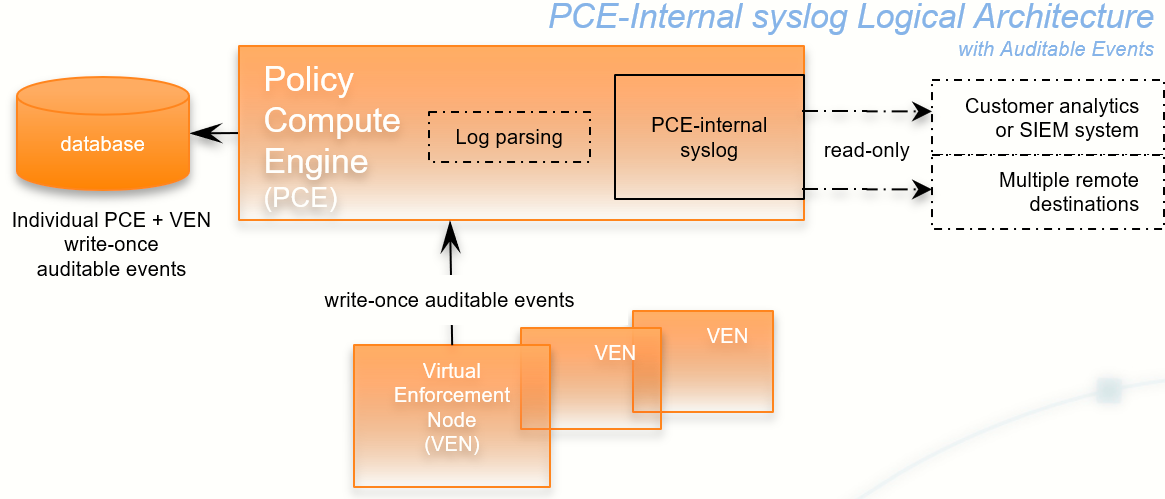
Utilizing the internal syslog works well with the PCE's auditable events data. See the Events Administration Guide.
The PCE internal syslog has the following features:
Syslog message routing to an unlimited number of remote destinations
Auditable events for syslog service, as required by Common Criteria
Integration with PCE Support Reports
Common timestamps defined by RFC 3339, including fractional timestamps, such as milliseconds
PCE log rotation and disk usage management
SIEM support by enabling sending events to remote destinations
Optional data-in-motion encryption
Do Not Write Additional Information to log_dir
Though not recommended, you can put the PCE internal syslog into operation while still running any syslog implementation you already have. However, keep the following information in mind.
Caution
Do not store auditable events in log_dir
If you continue to use a previously configured syslog (prior to Illumio Core version 18.2), Illumio recommends that your own local syslog configuration be changed to not store any additional information in log_dir. The log_dir parameter in runtime_env.yml defines where logs are written and by default is /var/log/illumio-pce. This recommendation includes avoiding storing your auditable events logs in this directory.
The PCE Support Report includes all data in this directory. Illumio considers the auditable event information as private, confidential data. Storing it in log_dir could inadvertently release this information by way of the PCE Support Report to persons other than your organization's auditors.
Configure Events and Syslog
After installing the PCE, configure events and the syslog server using the PCE web console.
For information, including configuring remote syslog destinations, see "Events Settings" in the Events Administration Guide.
(Optional) Customize PCE Log File Rotation
Internal PCE log file rotation is governed by two values: maximum file size (default: 100MB) and maximum retention (default: 10 files). In larger-scale deployments, these values could be an insufficient amount of log data to successfully troubleshoot runtime issues.
To customize the rotation of PCE log files, run the following command:
sudo -u ilo-pce illumio-pce-env logs --modify logfile[:size][/rotation]In logfile, enter the name of the file. If you do not already know the name of the log file, run this command to list all logs:
sudo -u ilo-pce illumio-pce-env logs
In size, specify a number and append m to specify a size in MB or g to specify a size in GB. In rotation, enter a number to control how many past rotated log files to keep. When this number is exceeded, the oldest file is deleted. To return to the default log rotation values of 100MB and 10 files, run this command with logfile alone, without the size or rotation parameters.
For example:
Argument | Result |
|---|---|
| Rotate the haproxy log when it reaches 1GB, and keep the last 20 rotated files. |
| Set the haproxy.log to 3MB, indicated by the |
| Keep the 5 most recent |
| Return the |
To confirm that the hosts have sufficient disk space to accommodate the log files with these rotation settings, run this command:
sudo -u ilo-pce illumio-pce-ctl check-env
It issues a warning if the log usage is too great for the partition size.
(Optional) Set Path to Custom TLS Certificate Bundle
When you enable Transport Layer Security (TLS) mutual authentication, the channel to the remote syslog destination can be secured by your own TLS CA certificate bundle. A CA bundle is a file that contains root and intermediate certificates. The end-entity certificate along with a CA bundle constitutes the certificate chain.
The value of the runtime_env.yml file optional parameter trusted_ca_bundle is the path to your own CA certificate bundle.
When a custom TLS bundle is provided by the user during configuration, this bundle is used for certificate verification.
When a custom TLS bundle is not configured for a particular destination, the PCE trust store is used (
runtime_env.ymlparametertrusted_ca_bundle).
Remote Destination Setup for Syslog Server
Enabling TLS with the syslog protocol allows you to secure the communication to your syslog service with public CA certificates or with TLS certificates from your own CA.
On the remote syslog server, ensure restricted access to the data by relying on the OS-level user access mechanisms. In addition, limit the number of users allowed access to the syslog storage itself. If possible, rely on an enterprise-class log management system to post-process the event data.
RFC 5424 Message Format Required
Ensure that your remote syslog destination is configured to use the message format defined by RFC 5424, The Syslog Protocol, with the exception.
Traffic flow summary messages include a prefix of an octal number, like the string 611 highlighted in bold at the beginning of the snippet of a LEEF record below. Ensure that your parsing programs on the remote syslog destination account for this prefix:
611 <14>1 2018-08-06T11:47:26.000000+00:00 core1-2x2devtest59
illumio_pce/collector 22724 - [meta sequenceId="3202"] sec=556046.963
sev=INFO
pid=22724 tid=30548820 rid=e163020f-32c5-4c59-ab06-dfb93b60ff4e
LEEF:2.0|Illumio|PCE|18.2.0|flow_allowed|cat=flow_summary
...
Note
You must ensure that your remote syslog uses the
network(flags(syslog-protocol))form for receiving messages.RFC 5424-formatted messages might not be fully functional with rsyslog versions earlier than 5.3.4.
Message Size: 8K
The size of the PCE internal syslog messages is up to 8K bytes. However, many implementations of syslog have a default message size of 4K bytes. Ensure that your remote syslog configuration is set for 8K message size. Configuring the remote destination's syslog message size depends on your implementation of syslog. Consult your vendor documentation for information.
After PCE Installation
This section describes some of the basic things you can see immediately after installing the PCE.
Warning
Any adverse effects of using security scanners or other mechanisms intended to probe or exercise various parts of the PCE or its environment cannot be anticipated by Illumio and are therefore unsupported. Doing so may interfere with or even prevent the PCE from operating properly.
RPM Installation Directories
The PCE software RPM installs to the following directories:
Location | Contents at Installation | Permissions / Ownership |
|---|---|---|
| PCE software |
|
| Empty |
|
| Service script |
|
| Empty |
|
| Log files |
|
RPM Runtime User and Group
The PCE installation creates a runtime user and group named ilo-pce to run the PCE software. For security, the ilo-pce user is configured without a login shell or home directory.
Caution
For better security, do not give the ilo-pce user a login shell or home directory.
You should run PCE commands as root or as a user belonging to the ilo-pce group. You run the PCE software with sudo, as shown throughout this guide:
sudo -u ilo-pce somePCEcommandYou might put several users into the ilo-pce group for shared maintenance or other needs. However, only the ilo-pce user is actually used to run the software.
PCE Control Interface and Other Commands
PCE Service Script illumio-pce for Boot
The illumio-pce service script in /etc/init.d/illumio-pce switches to the runtime user (ilo-pce) prior to running other PCE programs. The primary purpose of the init.d service script is to start the product on boot. The service script can also be run with the /sbin/service command:
$ service illumio-pce
Usage: illumio-pce {start|stop|restart|[cluster-]status|{set|get}-runlevel|control|database|environment|setup}
PCE Runlevels
PCE runlevels define the system services started for common operations, such as upgrade, downgrade, and restore.
The runlevel is set with the following command:
illumio-pce-ctl set-runlevel numeric_runlevelThe numeric_runlevel varies by type of operation.
Setting the runlevel might take some time to complete, depending on the cluster configuration. Check the progress with the following command:
illumio-pce-ctl cluster-status -w
Alternative: Install the PCE Tarball
Use these alternative steps instead of the normal installation procedure described in Install the PCE and UI.
Note
The preferred installation mechanism is the RPM distribution, which is easier than the tarball installation.
Process for Installing PCE Tarball
If you are installing the PCE tarball distribution, perform the following tasks on each nodes in your deployment:
Create the PCE user account.
Resolve OS dependencies.
Create the directory structure for the PCE. The PCE tarball supports a configurable directory structure. This feature allows you to choose the directory structure that best meets your needs.
The following table lists the directories used by the PCE. You need to create these directories and update the listed PCE Runtime Environment File with the proper values.
Directory
Use
Permissions
Example
install_rootPCE binaries and scripts
Read/Execute
/opt/illumio-pcepersistent_data_rootA writable location where the PCE writes its persistent data
Must be owned by the user that runs the PCE.
Read/Write
/var/lib/illumio-pce/dataruntime_data_rootA writable location where the PCE writes runtime data
Must be owned by the user that runs the PCE.
Read/Write
/var/lib/illumio-pce/runtimeephemeral_data_rootA writable location where the PCE writes temporary files
Read/Write
/var/lib/illumio-pce/tmplog_dirDirectory where the PCE writes text file logs
You must configure
logrotate(or similar) to ensure log files do not grow too large.Read/Write
/var/log/illumio-pceThe default location of the PCE Runtime Environment File is
/etc/illumio-pce/runtime_env.yml, but for the exact location on your systems, check the value of thelog_dirparameter.Copy the PCE tarball to the
install_rootdirectory and untar it.Create an
initscript to runinstall_root/illumio-pce-ctlstartat boot.
Upgrade PCE Tarball Installation
The $ILLUMIO_RUNTIME_ENV shell environment variable defines the location of the runtime_env.yml file.
The following variables used in this section refer to entries in the runtime_env.yml file for each node in the cluster:
install_rootpersistent_data_root<log_dir>
On all nodes in the cluster, perform the following steps:
Move the old PCE version to a backup directory:
mv install_rootinstall_root_previous_release
For example:
mv /opt/illumio-pce /opt/illumio-pce-previous-release
Install the new PCE TGZ version:
$ mkdir install_root
$ cd install_root
$ tar -xzf illumio_pce_tar_gz
Change Tarball to RPM Installation
Perform these steps to install a first-time RPM to replace the previous tarball installation.
On all nodes, as the previous PCE runtime user, stop the PCE:
illumio-pce-ctl stop set-runlevel 1
Move all files under the
pce_installation_rootdirectory to a backup directory:mv pce_installation_root previousinstall-root
Change the previous PCE runtime user and group to
ilo-pce:ilo-pce:# usermod --login ilo-pce previous-user # groupmod --new-name ilo-pce previous-group
Install the PCE via the RPM:
rpm –ivh --nopre illumio-pce-16.6-0.x86_64
Note
The
--nopreoption prevents the RPM from creating these two empty directories:/var/lib/illumio-pceand/var/log/illumio-pce.Move the existing
runtime_env.ymlfile to/etc/illumio-pce.Update the
ILLUMIO_RUNTIME_ENVenvironment variable to/etc/illumio-pce/runtime_env.ymlor delete this environment variable. The PCE looks for the runtime environment file in this location.If necessary, change the
install_rootparameter in theruntime_env.ymlfile to/opt/illumio-pce.On all nodes, as the new PCE runtime user, start the PCE:
sudo -u ilo-pce illumio-pce-ctl start
On the data0 node, as the new PCE runtime user, migrate the database:
sudo -u ilo-pce illumio-pce-db-management migrate
As the new PCE runtime user, bring the PCE to runlevel 5:
sudo -u ilo-pce illumio-pce-ctl set-runlevel 5