Labeling Workloads Lesson
In this lesson, you will learn how labels describe the function of your workloads by creating and applying a natural language, metadata system.
Lesson Prerequisites
This lesson requires you to have the following data, access, and systems.
Development or Test Applications: The hosts need to have a running application that is generating traffic data. A distributed application is recommended.
Managed workloads: Completion of the pairing lesson where you installed the VENs on workloads by pairing them with the PCE.
Instructions
Overview of Labels
The Illumio security policy for securing workloads differs from traditional network security policies. Traditional security policies use network constructs, such as VLANs, zones, and IP addresses to tie security to the underlying network infrastructure.
In contrast, the Illumio security policy uses a multidimensional label system to sort and describe the function of workloads. In a general sense, labels abstract the IP addresses, ports, and processes of workloads and infrastructure into a set of easily understood “plain language” labels. In the Illumio Core, labeling is a method of attaching metadata to workloads.
By describing workload functionally through labeling, policy statements are clear and unambiguous. Labeling workloads enables application-centric visibility, and a simplified, understandable, and adaptable model for creating policy. With labels, the application environment can be organized and visualized with more context, showing a view of applications and their components.
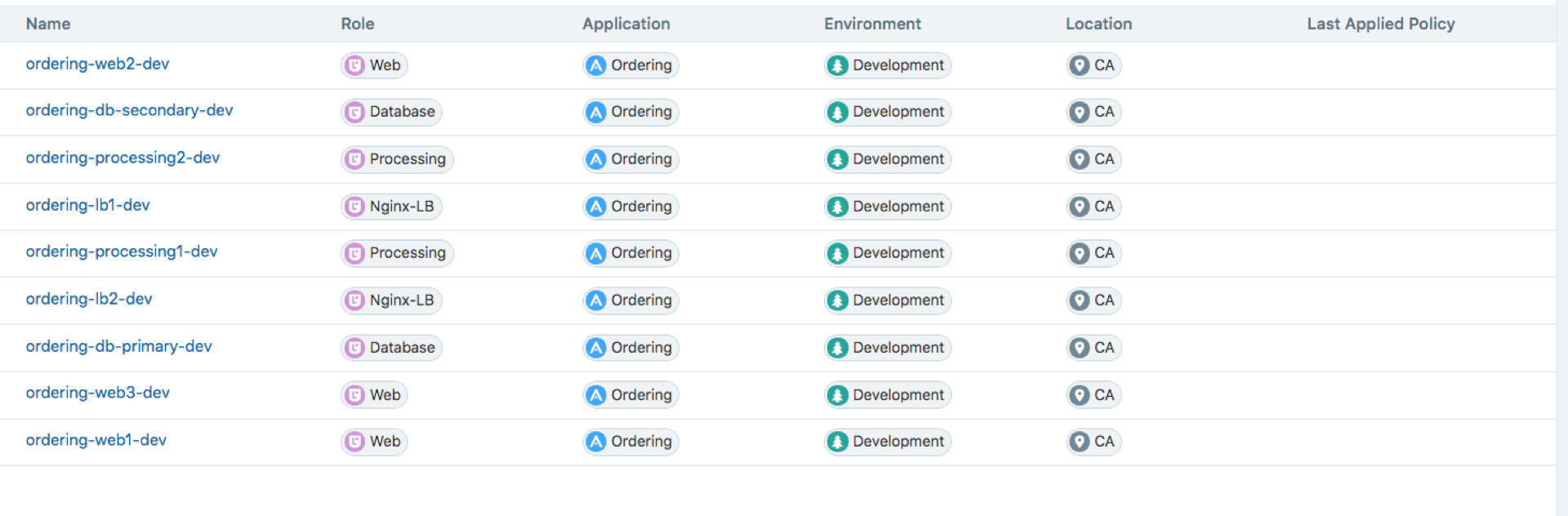
Role: The function of a workload; for example, for a simple two-tier application consisting of a web server and a database server: Web and Database.
Application: The application that a workload supports; for example, a multi-tier, distributed application that you want to manage; for example, Application1234.
Environment: A workload's stage in the product development lifecycle; for example, QA, staging, or production.
Location: A workload's physical location; for example, Germany or Asia, Rack #3, or HQ.
Flexible labels: You can define custom label types to reflect additional characteristics of the workloads in your installation. Create any label type that meets your organization's business needs. For example, you might want to label workloads according to their operating systems.
Together, labeling workloads and creating the corresponding rulesets and rules define the security policies for the workloads in the organization. The PCE converts these label-based security policies into the appropriate rules for the OS-level firewalls of the workloads and calculates which of the workloads require the rules so that policy is only delivered where it is needed.
Develop a Labeling Schema
Getting your label design right is one of the most important things you can do for your Illumio deployment. In the Illumio Core, labels are important for the visual representation of your environment and when writing and managing security policy.
Icon | Description |
|---|---|
 | The Role label is often the hardest label type to define, but it is the least crucial if the segmentation type used is micro-segmentation, also known as ringfencing. |
 | The Application label is an important label and usually refers to the business service. |
 | The Environment label is also important to ensure environmental separation. |
 | The Location label importance depends on your business application structure. |
(Flexible) | Decide on additional labels that are important for your business purposes. Assign a custom icon to represent each flexible label type. |
When creating and applying labels to workloads, we recommend you follow these guidelines.
Common roles
Think of workloads in your environments that play the same common role regardless of the application location or environment they belong to; for example, web, application, database, or load balancer. Create Role labels for all these common workload types.
Important applications
List your most important applications and create Application labels for each. Organize workloads that are part of the application into logical tiers; for example, web, application, and database tier for an ERP or HRM application. Apply common Role labels to each workload in the tier; for example, “web” for web-tier workloads.
Data center core services
Make a list of infrastructure services, such as domain controllers, DHCP, authentication, Microsoft Active Directory, FTP, and monitoring services such as Zabbix or SIEM. Create labels for each core service.
Key environments
Create labels for common environments first; for example, production, development, staging, and testing. Create labels for other environments second; for example, PCI, data replication, and disaster recovery.
Location or virtual designators
Create Location labels that are simple to understand by mimicking your infrastructure location names; for example, physical location (Rack‐5‐slot2 and New‐York) or virtual location (AWS, Azure, and Rackspace).
Use a combination of Location and Environment labels to avoid confusion; for example, instead of Location labels “Domain‐A‐East” and “Domain‐A‐West,” use the Environment label “Domain‐A” and the Location labels “East” and “West.”
Operating systems or other characteristics specific to your organization
Create additional label types, depending on what additional workload characteristics you need to use for labeling and grouping in your organization. For example, you can create a new label type named OS that reflects the operating system of each workload.
Identify Your Workloads
Answering these basic questions will help you label your workloads.
Question | Answer | |
|---|---|---|
Location | Where is this workload? | It is at |
Environment | Is it a production, development, or other workload? | It is in the |
Application | What is the business this workload provides to the company? | It stores orders for the |
Role | What specific part of the business does this workload do? What is its tier? Does its name contain its role? | It stores orders. It is a |
Flexible Label | Of the other label types (if any) that have been defined in your organization, what values apply to each workload? | For example, its OS label is Windows. |
Create and Apply Labels to Workloads
From the PCE web console menu, choose Workloads.
Use the checkboxes to select the workloads to label or re-label them.
Click Edit Labels on the page tool bar.
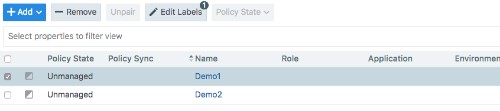
Pick a label type to assign.
Type to select an existing label or to create a new one.
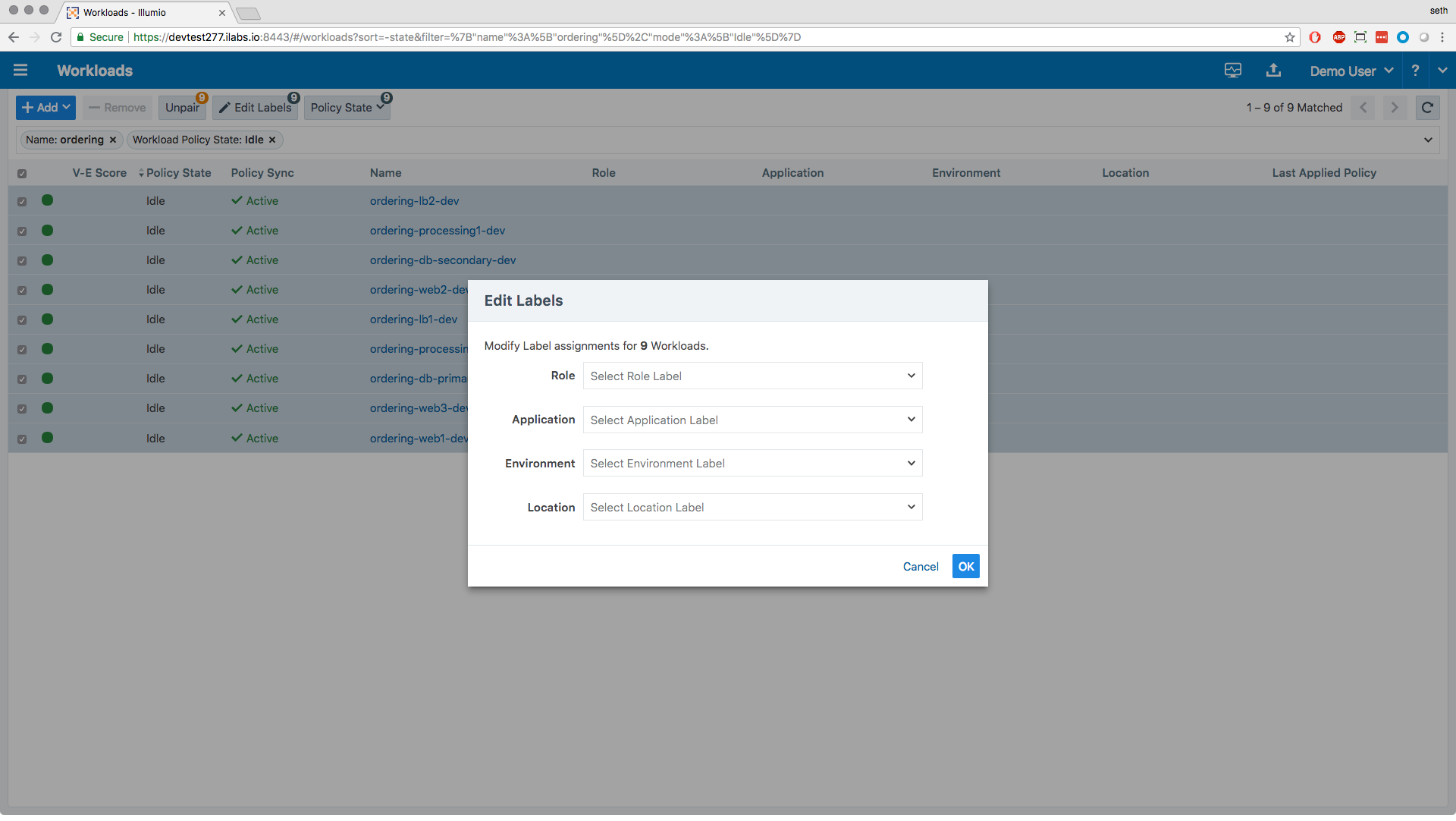
Click OK. Labels will appear in the workload table.
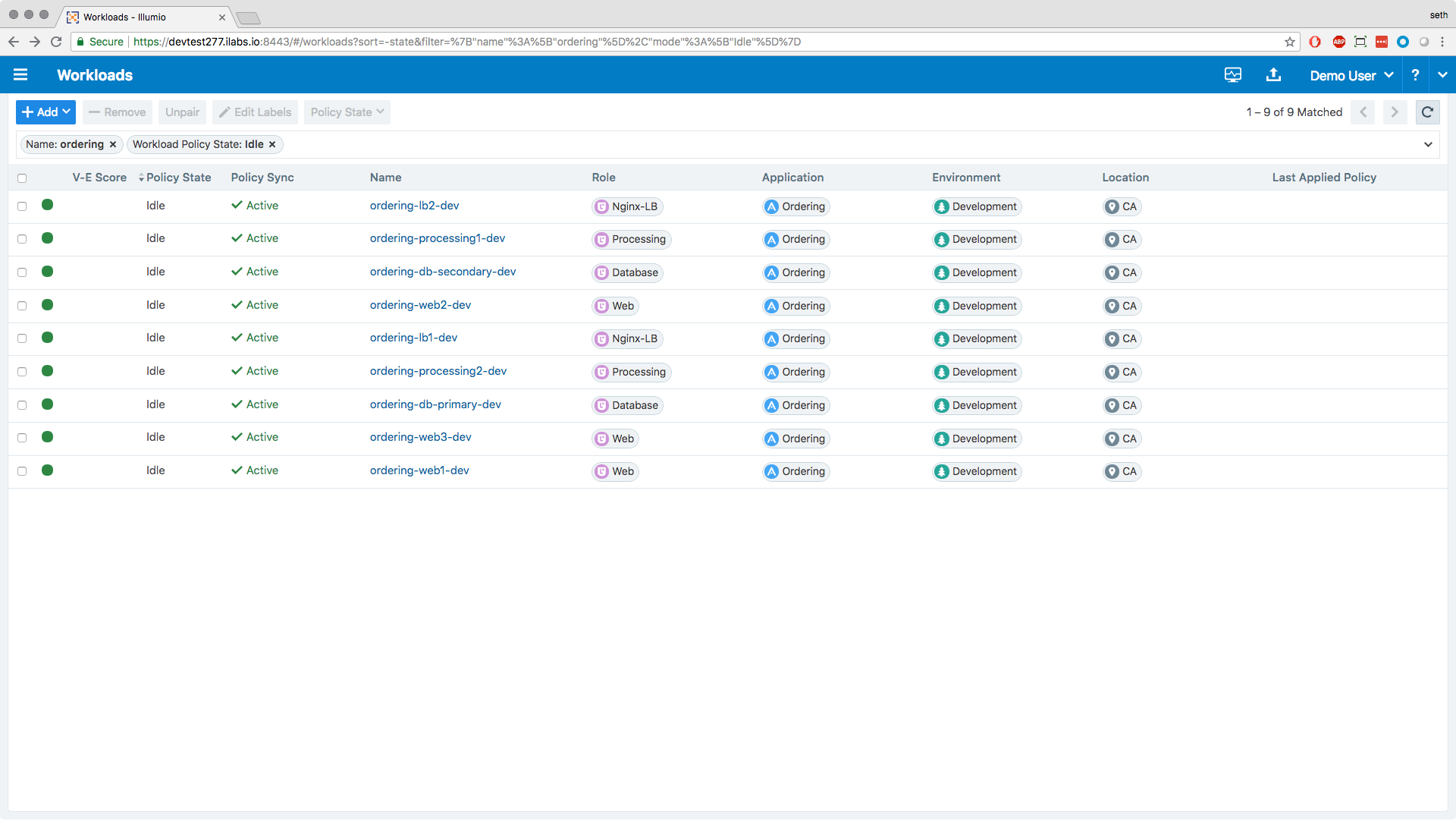
Repeat for all workloads.
Tip
Multiselect workloads to change the labels for multiple workloads at once.
Once your workloads are labeled, you can write rules using the labels you have applied to them. You will learn all about applying security policy to workloads in one of the next lessons.