Illumio Core 25.2.10 Administration Guide

Firewall Coexistence

To provide additional security, you can supplement Illumio's firewall with your organization's firewalls using Firewall Coexistence. You can set the Illumio firewall to either Exclusive mode or Coexistence mode via the PCE web console or the Illumio REST API. In both modes, the Illumio firewall is always separate from other firewalls.

Note

Using Firewall Coexistence requires careful consideration

Illumio cannot prevent any non-Illumio processes from programming the firewall, so interference from non-Illumio processes is always possible. The server VEN is able to detect many cases of such interference and will report them as firewall tampering. Although Illumio expects to have exclusive control over the firewall by default (preferred), it is possible to coexist with non-Illumio processes depending on exactly how the non-Illumio processes are programming the firewall.

Because the VEN has no way to know about the actions of non-Illumio processes, coexistence necessarily results in the loss of some visibility and clarity in traffic reporting. For example, server VENs are usually able to coexist with:

  • Many versions of stand-alone Docker and other simple containers

  • Manually programmed rules, depending on the precise details

  • Windows GPO, depending on precise details

  • Many anti-virus solutions

Server VENs aren't able to coexist with complex containers such as Kubernetes. For such cases, consider using the C-VEN.

Firewall Coexistence and Endpoint VENs

Endpoint VENs are in Firewall Coexistence by default. This cannot be changed.

Important

The Firewall Coexistence feature deprecates these features:

  • Windows FAS VEN coexistence

  • Linux VEN NAT ignore

  • Linux VEN container mode

Coexistence Mode by Operating System

Coexistence Mode is a key architectural feature of Illumio’s enforcement model, designed to support interoperability with native and third-party firewalls. By evaluating rule injection behavior and maintaining policy integrity, Illumio ensures consistent security outcomes across diverse platforms. This section provides an OS-specific breakdown of how Coexistence Mode is implemented and what visibility and control mechanisms are in place.

Windows Server VEN

Coexistence Mode

Windows Firewall 1

3rd Party WFP Firewalls

Tampering Behavior

Visibility

Exclusive

Illumio disables Windows Advanced Firewall/Defender Policy.

Illumio coexists with all 3rd party non-Illumio WFP filters. WFP is fundamentally a coexisting firewall and Illumio coexists with all non-Microsoft Windows firewalls.

Standard 2

The VEN reports all traffic flows passing through the Illumio WFP filter. The reported policy decision is based solely on the Illumio policy.

Coexistence, Primary and Non-Primary

Illumio coexists with Windows Advanced Firewall/Defender Policy.

Illumio coexists with all 3rd party non-Illumio WFP filters. WFP is fundamentally a coexisting firewall and Illumio coexists with all firewalls.

Windows Endpoint VEN

Coexistence Mode

Windows Firewall 1

3rd Party WFP Firewalls

Tampering Detection Behavior

Visibility

Coexistence Primary 3

Illumio coexists with Windows Advanced Firewall/Defender Policy.

Illumio coexists with all 3rd party non-Illumio WFP filters. WFP is fundamentally a coexisting firewall and Illumio coexists with all firewalls.

Standard 2

The VEN reports all traffic flows passing through the Illumio WFP filter. The reported policy decision is based solely on the Illumio policy.

Linux IPTables

Coexistence Mode

IPtables Rules

3rd Party IPtables Firewalls

Tampering Detection Behavior

Visibility

Exclusive

Illumio rules are inserted at the top of the filter table and all policy decisions are final. Any rules appearing after the Illumio firewall are not evaluated or processed.

Illumio doesn't alter existing services such as firewalld4 and nftables (not to be confused with the kernel module of the same name that implements the firewall itself).

Overwrites or ignores 3rd Party Firewall Rules

Standard 2

The VEN reports all traffic flows passing through the Illumio IPTables filter. The reported policy decision is based solely on the Illumio policy.

Coexistence Primary

Illumio rules are inserted at the top of the filter table and all Blocks are final. Any rules appearing after the Illumio firewall are evaluated or processed if the Illumio policy decision was to Allow.

Illumio doesn't alter existing services such as firewalld4 and nftables (not to be confused with the kernel module of the same name that implements the firewall itself).

Coexists with 3rd party IPTables firewalls

Will tolerate only rules appearing after Illumio in the filter table.

Coexistence Non-Primary

Will tolerate rules appearing before or after Illumio in the filter table.

The VEN does not report traffic blocked from rules before Illumio because the Illumio IPTables filter never evaluates that traffic. The VEN reports all traffic flows passing through the Illumio IPTables filter.

Linux NFTables

Coexistence Mode

NFTables Rules

3rd Party nftables Firewalls

Tampering Detection Behavior

Visibility

All Modes:

  • Exclusive

  • Coexistence Primary

  • Coexistence Non-Primary

Illumio doesn't alter existing services such as firewalld4 and nftables (not to be confused with the kernel module by the same name that implements the firewall itself).

Illumio rules are inserted into Illumio-specific filters. Non-Illumio filters operating at higher priority may pre-empt Illumio filters, otherwise all policy decisions are final. Non-Illumio filters operating at lower priority are not evaluated or processed after Illumio filters.

Illumio coexists with all 3rd party non-Illumio nftable spaces. NFT is fundamentally a coexisting firewall, and Illumio coexists with all non-Illumio firewalls.

Illumio doesn't tolerate any rule changes within Illumio nftable spaces.

The VEN does not report traffic blocked from rules with a higher priority than Illumio because nftable never evaluates that traffic. The VEN reports all traffic flows passing through the Illumio nftable space.

Typical Firewall State on New Linux Installations

The following table details the typical state of the firewall on new installations of select Linux distributions.

OS version

Firewall Stack

Firewall Service Name

Typical State of Firewall on New OS Installation

CentOS 5 – 6

IP Tables

n/a

n/a

CentOS 7

IP Tables

firewalld

Disabled; no default rules; allows all traffic by default

CentOS 8 – 10

NetFilter Tables (aka NFT)

Enabled; active with default rules in “public” zone; restricts inbound traffic to essentially just SSH and DHCP by default

RedHat

see CentOS

firewalld (+ nftables)

See CentOS

SUSE 11 – 14

IP Tables

SuSEfirewall2

Enabled; active with default rules in “external” zone; restricts inbound traffic to essentially just SSH and DHCP by default.

SUSE 15 < SP3

IP Tables

firewalld

Enabled; active with default rules in “public” zone; restricts inbound traffic to essentially just SSH and DHCP by default.

SUSE 15 >= SP3

NetFilter Tables (aka NFT)

Solaris/AIX

Coexistence Mode

Behavior

Coexistence is enabled by default and can't be disabled.

Illumio coexists with all 3rd party Packet Filter firewalls. 5

macOS

Coexistence Mode

Behavior

Coexistence is enabled by default and can't be disabled.

Illumio coexists with all 3rd party Packet Filter firewalls.

Notes

1 For example, Group Policy, not the Windows Filtering Platform (WFP).

2 Standard tampering detection behavior means that Illumio reviews external rule injections for policy impact. Illumio permits such injections only if it determines that no conflict with Illumio's defined policy is possible. Non-disruptive injections are tolerated.

3 On Endpoint VENs, Coexistence mode is enabled by default and can't be disabled.

4 Services such as firewalld are often configured out-of-the-box to block most inbound ports by default. To avoid confusion around potentially conflicting rules, Illumio recommends (but doesn't require) that services like firewalld be disabled.

5 Don't disable these services in Solaris:

  • Packet Filter (PF)

    • Service: Managed by the SMF service svc:/network/firewall

    • Configuration: Rules are configured in the /etc/firewall/pf.conf file.

  • IP Filter (IPF)

    • Service: Managed by the SMF service svc:/network/ipfilter

    • Configuration: Rules are configured in the /etc/ipf/ipf.conf file

Firewall Tampering Protection
  • When coexistence is turned on in primary or secondary mode

    The VEN only monitors its own firewall rules against tampering. When the VEN detects tampering of Illumio firewall rules, an alert is raised, and the VEN reconfigures its firewall rules to its pre-tampered state in order to protect the workload. You can program non-Illlumio rules in any table without generating any tampering alerts.

  • When coexistence is turned on in primary mode

    The VEN also monitors that the Illumio rule in the main tables “stay on the top” when you choose Illumio to be the primary firewall. When the VEN detects that the Illumio rule is not on the top, an alert is raised, and the VEN moves the Illumio rule back to the top.

Prerequisites and Recommendations

This release of the Firewall Coexistence feature requires that you upgrade the VEN to 18.3.1 or later. The older versions of Illumio Firewall Coexistence are deprecated.

Windows VEN version 18.3.x ignores the older limited_wfas_coexistence and full_wfas_coexistence VEN settings for coexistence located in the VEN runtime_env.yml file. Linux VEN version 18.3.x ignores settings in /etc/default/illumio-agent for NAT table coexistence (container mode).

The following upgrade sequence is required. You must upgrade the VEN last and only after configuring firewall coexistence in the PCE:

Recommended Firewall Setting

For better security, Illumio strongly recommends setting the Illumio firewall as the primary firewall.

When you select Illumio to be the primary firewall, the VEN ensures that the Illumio rule in the main tables “stay on the top” only when you choose Illumio to be the primary firewall. The VEN does not enforce the Illumio rules to be on the top when Illumio is not the primary firewall. This behavior applies to all tables in iptables, such as filter, NAT, Raw, or Mangle.

When the Illumio firewall is set as primary, non-Illumio firewalls are traversed only when the Illumio firewall rules allow the traversal, in which case, packets are passed to non-Illumio firewalls.

Important

When the Illumio firewall is not set as primary, packets passed by non-Illumio firewalls are seen by the Illumio firewall; however, packets accepted by the non-Illumio firewall are not seen by the Illumio firewall.

Example

When the Illumio firewall is not set as primary, and the non-Illumio firewall logs and accepts all traffic on port 22, the Illumio firewall does not see the traffic on port 22.

When packets are allowed by the Illumio firewall, they are passed to other firewalls. Illumio's firewall does not monitor packets dropped by other firewalls. Packets dropped by the Illumio firewall are not passed to non-Illumio firewalls.

Set Firewall Coexistence

Warning

  • Endpoint VENs are in Firewall Coexistence by default. This cannot be changed.

  • Firewall Coexistence is not supported on Solaris and AIX platforms.

You can set firewall coexistence using either interface:

  • PCE web console

  • Illumio REST API

To view firewall coexistence settings in the PCE web console:

From the PCE web console menu, choose Settings > Security > Firewall Coexistence. The PCE web console displays the following settings:

  • Default: Ilumio Core is the exclusive firewall by default. You can configure firewall coexistence as needed for all workloads, for specific labels, or for both.

  • Firewall Coexistence:

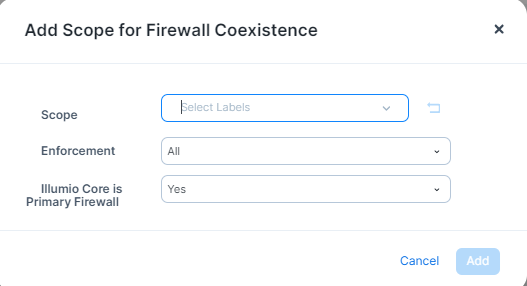
To add the scope for firewall coexistence:

  1. Click Add.

    add-scope-firewall-coexsist.png
  2. From the Scope drop-down list, select the labels.

  3. From the Enforcement drop-down list, select All, Enforced, or Illuminated.

  4. In the Illumio Core is Primary Firewall, select either Yes or No.

  5. When finished, click Add.