Network Location Awareness (NLA) Support for Endpoints
Illumio supports two methods of network classification: Native Windows NLA and PCE-Based NLA. The appropriate method to use in each case depends on the endpoint's environment and network connectivity requirements.
Native Windows NLA
Native Windows NLA is a Windows service that, in on-premises Active Directory (AD) and hybrid AD environments, identifies whether network connections are associated with corporate or non-corporate networks. In such environments, Illumio uses this information to classify endpoint network interfaces and then apply the appropriate firewall security policy as devices move between trusted and untrusted networks.
Windows and macOS Endpoint VENs both support Windows NLA.
About non-corporate interfaces
Corporate interfaces are domain-joined interfaces, such as an endpoint's VPN interface or any interface connected to an Active Directory domain. Non-corporate interfaces connect to networks that are not domain-joined, such as home wireless networks or public networks.
No connectivity is expected between endpoints that are off the corporate network. For this reason, rules for non-corporate interfaces are supported only between labels or workloads and IP lists. Rules between workloads and labels are not supported for non-corporate interfaces, and rules between corporate and non-corporate interfaces are also not supported. The endpoint VEN reports the IP addresses of non-corporate interfaces and the traffic flows observed on those interfaces to the PCE.
Writing rules with network profiles
You can apply network profiles to rules to specify which endpoint interfaces are affected. If no network profile is specified, the default is Corporate. This default applies to all servers and corporate interfaces on endpoints. Servers cannot have non-corporate interfaces.
To apply a rule to non-corporate interfaces, select Non-Corporate Networks (Endpoints Only) from the Rule Options menu. When Non-Corporate Networks or All Networks is selected, the rule must use IP lists in both the source and destination fields.
In the PCE web console, go to Policy > Policies.
When adding or editing a rule, click the Rule Options menu and select Non-Corporate Networks (Endpoints Only) or All Networks.
PCE-Based NLA
PCE-Based NLA (PCE NLA) enables organizations to maintain accurate corporate-versus-external network classification for endpoint network interfaces, ensuring that Illumio applies policy consistently in modern remote, cloud, and hybrid work environments.
By default, PCE NLA applies to endpoint network interfaces that are not domain-joined, but you can enable PCE NLA for domain-joined Windows endpoints as an optional organization-wide feature. For more information, see PCE NLA Support for Domain-Joined Windows Endpoints.
With PCE NLA, Endpoint VENs send network profile detection requests to the PCE. The PCE compares the IP address of each request, as seen by the PCE, with the corporate public IP addresses entered in Settings > Corporate Public IPs. These requests appear to originate from your organization's public IP addresses.
If an endpoint interface's IP address falls within the configured range of corporate public IP addresses, the PCE classifies the interface as corporate. If the address falls outside that range, the PCE classifies the interface as non-corporate and labels it External in the PCE UI.
PCE NLA Support for Domain-Joined Windows Endpoints
PCE NLA support for domain-joined Windows endpoints helps secure hybrid and remote workforces regardless of where they work.
This feature is helpful for these scenarios:
Domain-joined Windows endpoints move between on-campus and remote networks.
Different ingress policy enforcement is required when endpoints are on-campus versus off-campus.
An Always-On VPN or ZTNA is present for egress enforcement.
PCE NLA support for domain-joined Windows endpoints is an optional organization-wide configuration. When enabled, it applies to all VENs paired with the organization.
On-Prem customers can enable the feature with a northbound API call.
SaaS customers must contact Illumio to request enablement.
Use the following API calls to enable or disable the feature for your organization:
Note
Replace the numeral "1" in the command with your Illumio Organization ID.
curl -X PUT "https://<pce_fqdn>/api/v2/orgs/1/optional_features" \
  -H "Content-Type: application/json" \
  -u "<api_key>:<api_secret>" \
  -d '[{"name": "pce_nla", "enabled": true}]'
curl -X PUT "https://<pce_fqdn>/api/v2/orgs/1/optional_features" \
-H "Content-Type: application/json" \
-u "<api_key>:<api_secret>" \
-d '[{"name": "pce_nla", "enabled": false}]'Behavior when the PCE NLA service is unavailable
Beginning in VEN 25.2.40, Endpoint VENs retain the last known corporate or external classification for an interface when the PCE NLA service is temporarily unavailable or unreachable. The retained classification persists across VEN restarts and is automatically refreshed when the VEN can again reach the PCE NLA service. Classification changes are recorded in the VEN logs.
Add corporate public IP addresses to the PCE (PCE NLA)
In the Workload and VEN details pages in the PCE, the word Public is prepended to the IP address (as seen by the PCE) of non-domain-joined Windows workloads and macOS endpoint interfaces reachable by the PCE. When you enter these Public IP addresses in the PCE (Settings > Corporate Public IPs), the PCE classifies them as Corporate and programs their corresponding endpoint interfaces with the appropriate Illumio security policies.
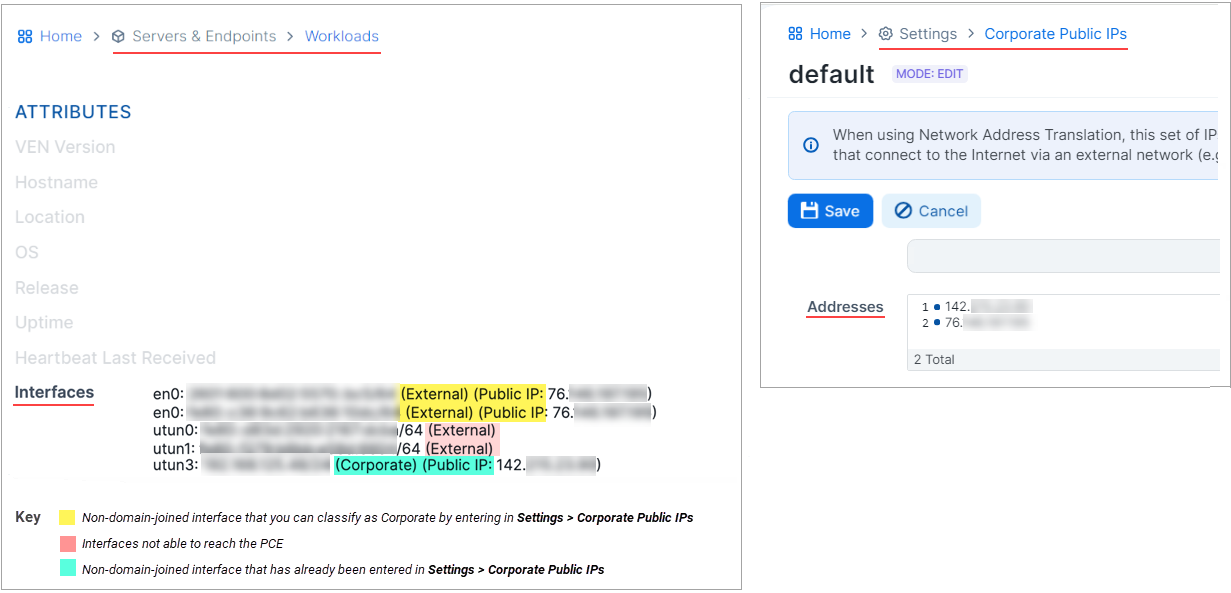
Go to Servers & Endpoints > Workloads.
Click the relevant workload to open its details page.
On the Summary tab, scroll to Interfaces and note the IP addresses labeled (External) (Public) that you want the PCE to classify as Corporate.
Go to Settings > Corporate Public IPs.
Click Edit. In the Addresses field, enter the public IP address that you noted. You can enter addresses as single addresses or as CIDR blocks. Click the tooltip for formatting help.
Click Save.
Understanding interface classification
To check how an endpoint interface is classified, go to the VEN details page in the PCE UI and scroll to Workload > Interfaces. Corporate interfaces display Corporate after the interface name and address. Non-corporate interfaces display External.
If an interface's classification differs from what you expect, verify the source of the classification. For Native Windows NLA, the classification originates from Windows. For PCE-Based NLA, the classification is based on the public IP address observed by the PCE and the addresses configured in Settings > Corporate Public IPs.
For PCE-Based NLA, keep in mind:
As non-domain joined Windows endpoints or macOS endpoint VENs make network location detection calls to the PCE from each workload interface, the public IP address they report is the source of the IP address as seen by the PCE.
In SaaS, the IP address is also an organization's public egress IP address to the Internet.
If a given interface is not reachable by the PCE, its IP address is classified as "External" on the workload's details page and "Public" does not appear.
If you enter the IP address of a non-domain-joined Windows workload or macOS endpoint in Settings > Corporate Public IPs, the PCE classifies its associated interface as "Corporate." Otherwise, the PCE classifies the interface as "External."