Setting Up the Illumio - Armis Integration
Important
See Before You Begin Setting Up the Illumio - Armis Integration to make sure that you have the necessary information before you onboard the integration.
Use the following procedure to set up the Illumio - Armis integration:
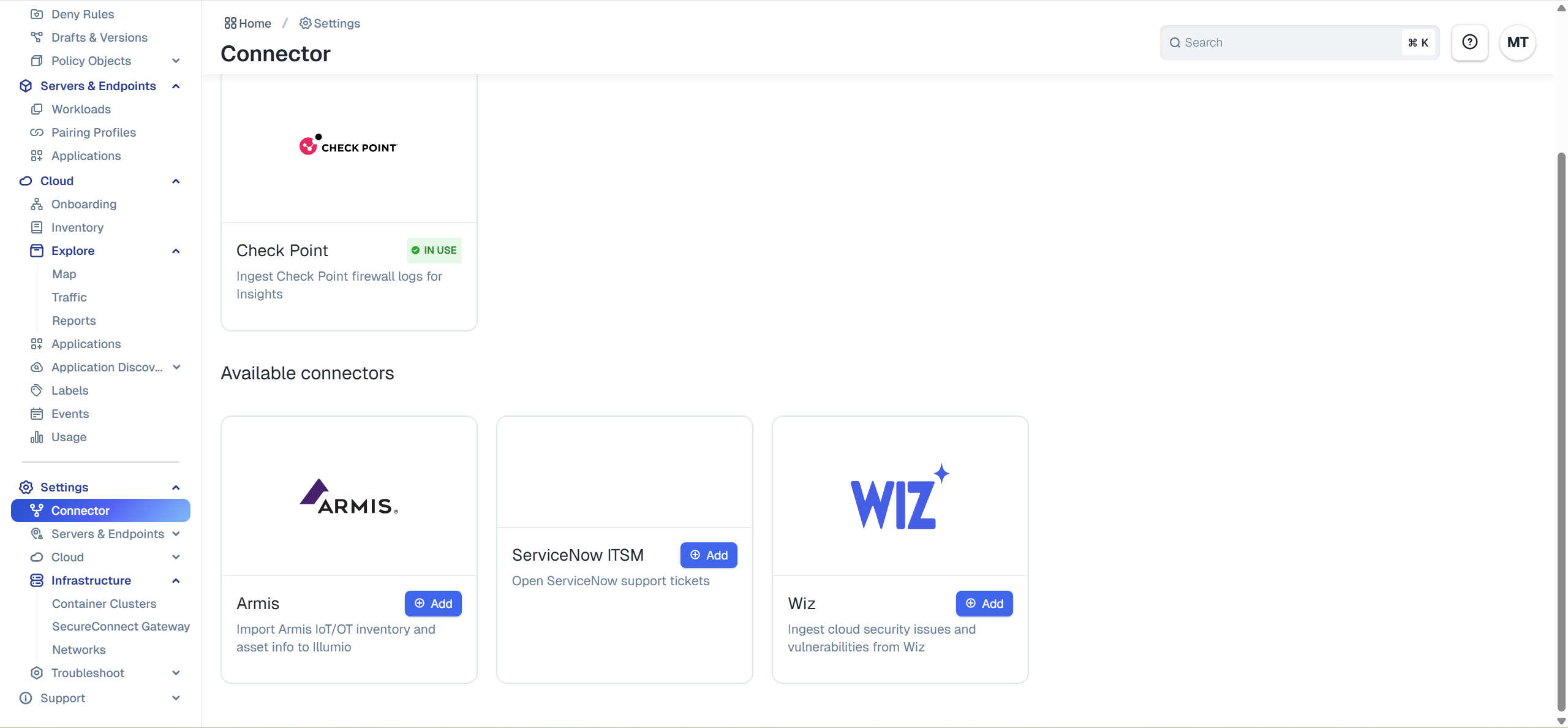
Within Illumio Console, navigate to the Connector page and click + Add on the Armis tile:
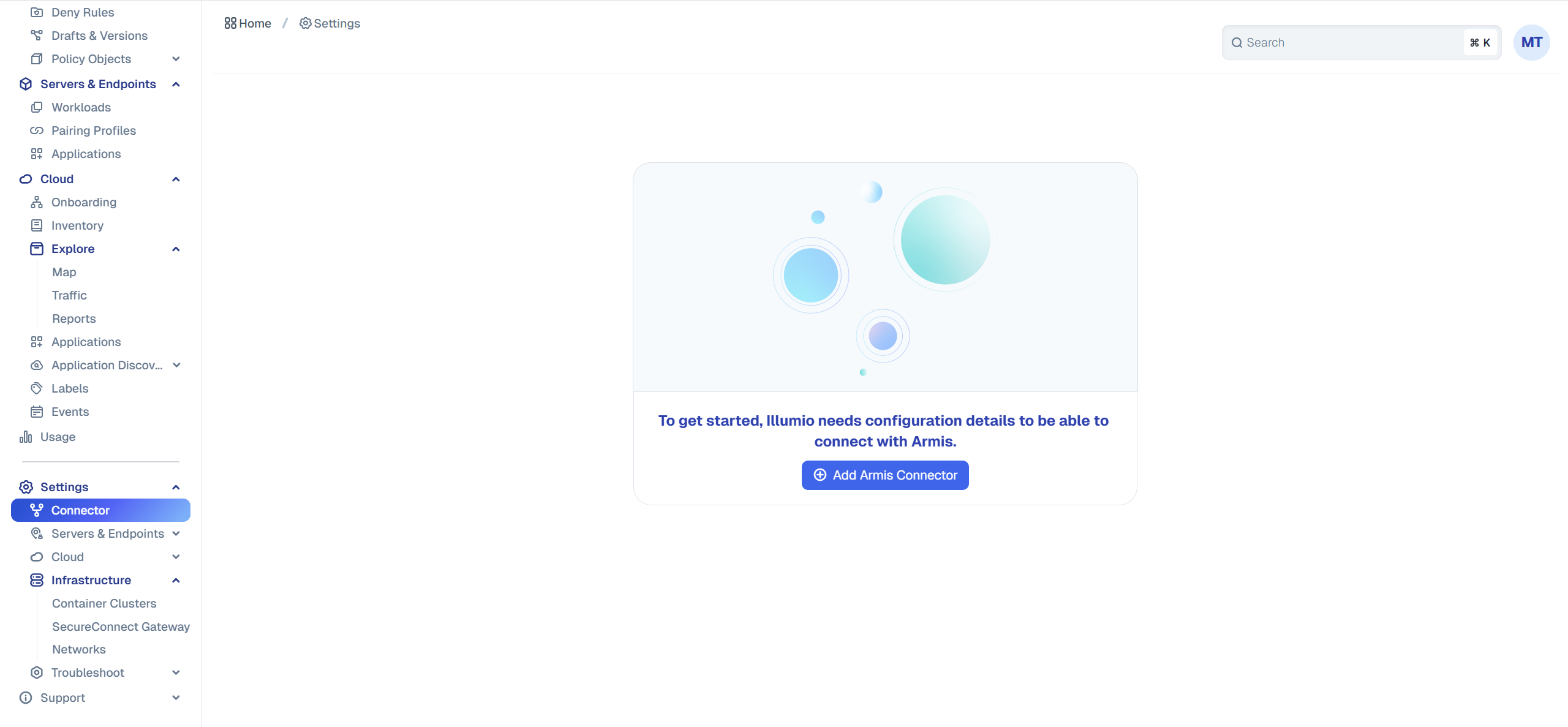
Click +Add Armis Connector.
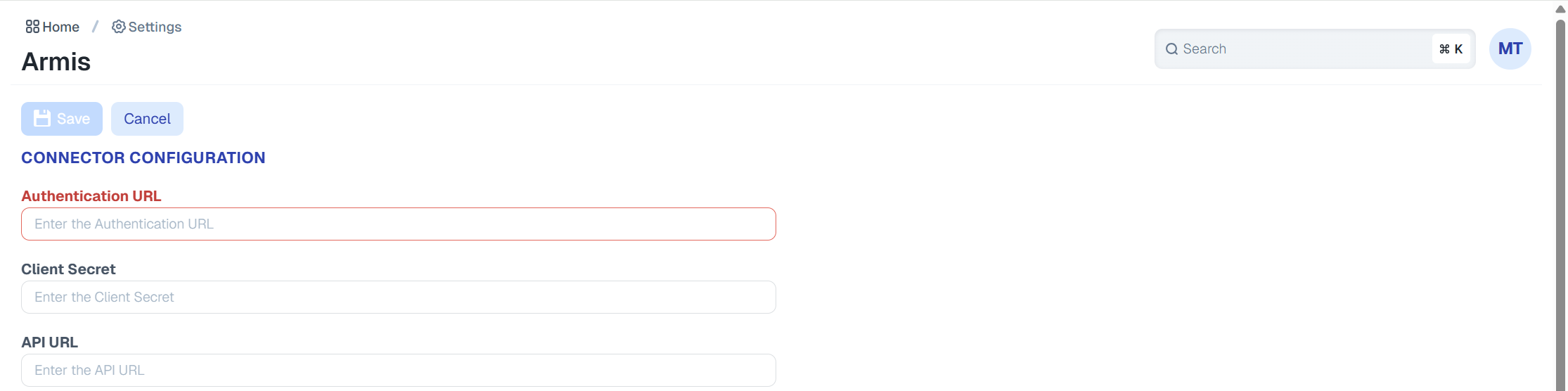
On the Connector Configuration page, enter the Authentication URL, the Client Secret, and the API URL:
Under IoT/OT Device Inventory to Import, select the device category that you want to import and click Save.

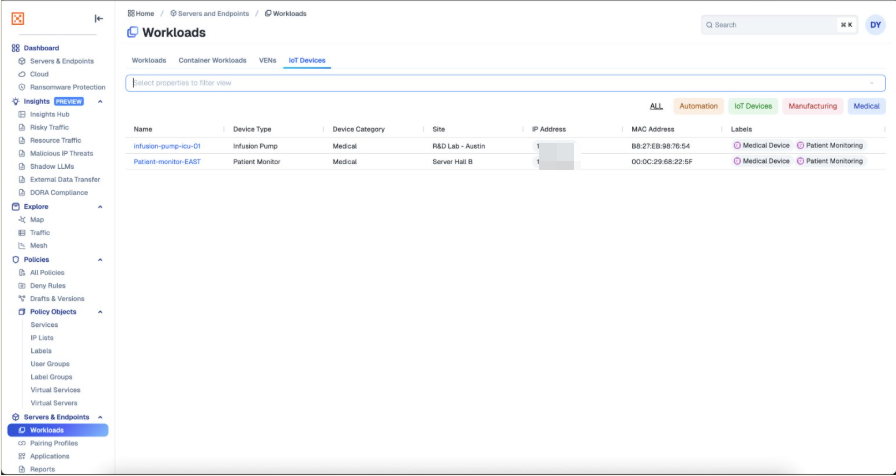
After you have set up the integration, information about your onboarded devices displays in the IoT Devices tab within the Workloads page: