Onboard the Illumio - Claroty Integration
Log into the Illumio Console and go to Settings > Connector.
Find the Claroty connector and click + Add.
On the Connection Configuration page, enter the required values:
Note
See Before You Onboard the Illumio and Claroty Integration to obtain the required values.
Enter the API URL, such as https://<your-claroty-console>/api.
Enter your API token in the Client Secret field.
Click Test Connection to verify that you have entered your credentials correctly.
Under Category, select the device category that you want to import. You can select all categories or specify certain categories.
Click Save.
Check the Last Updated Status and Devices Updated information to verify that your devices imported successfully.
Note
If you are importing a large number of devices, it might take some time for the confirmation message to display.
View Traffic from Claroty Devices
After you complete onboarding, your Claroty devices display. However, if you want to view traffic for those devices, you must install Flowlink. See Configure Flowlink.
View Device Traffic in the Devices Tab
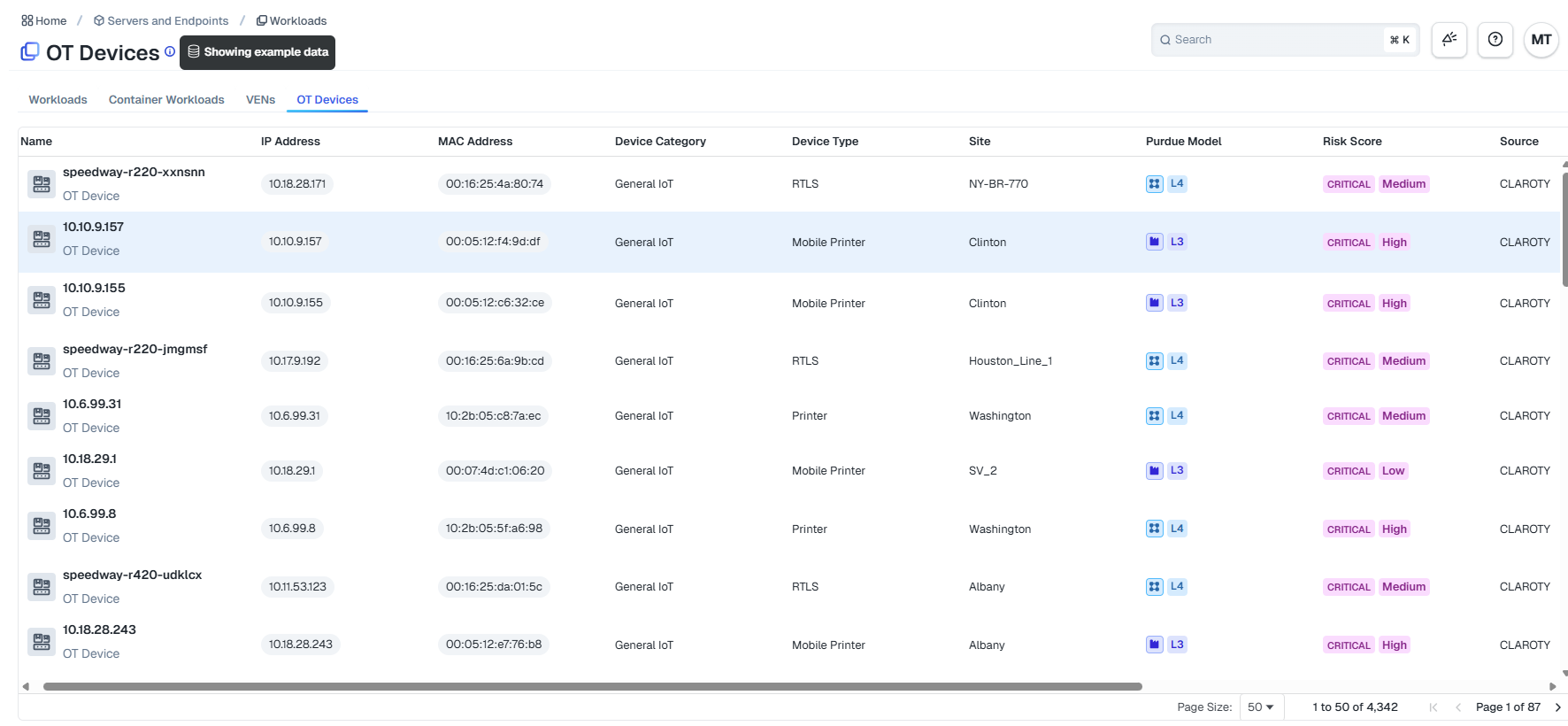
Within Illumio Console, navigate to Servers & Endpoints > Workloads > Devices.
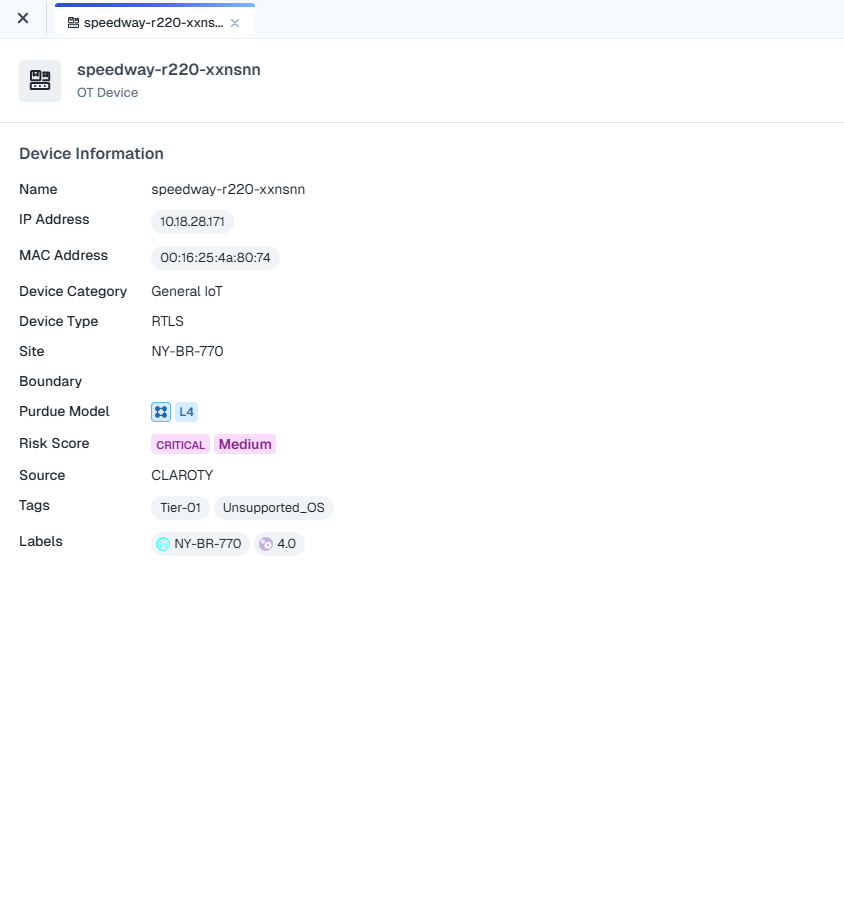
To view details, hover over a device and click Details in the tooltip or click any column in the device row to view the detail pane.
View Device Traffic in the Map Screen
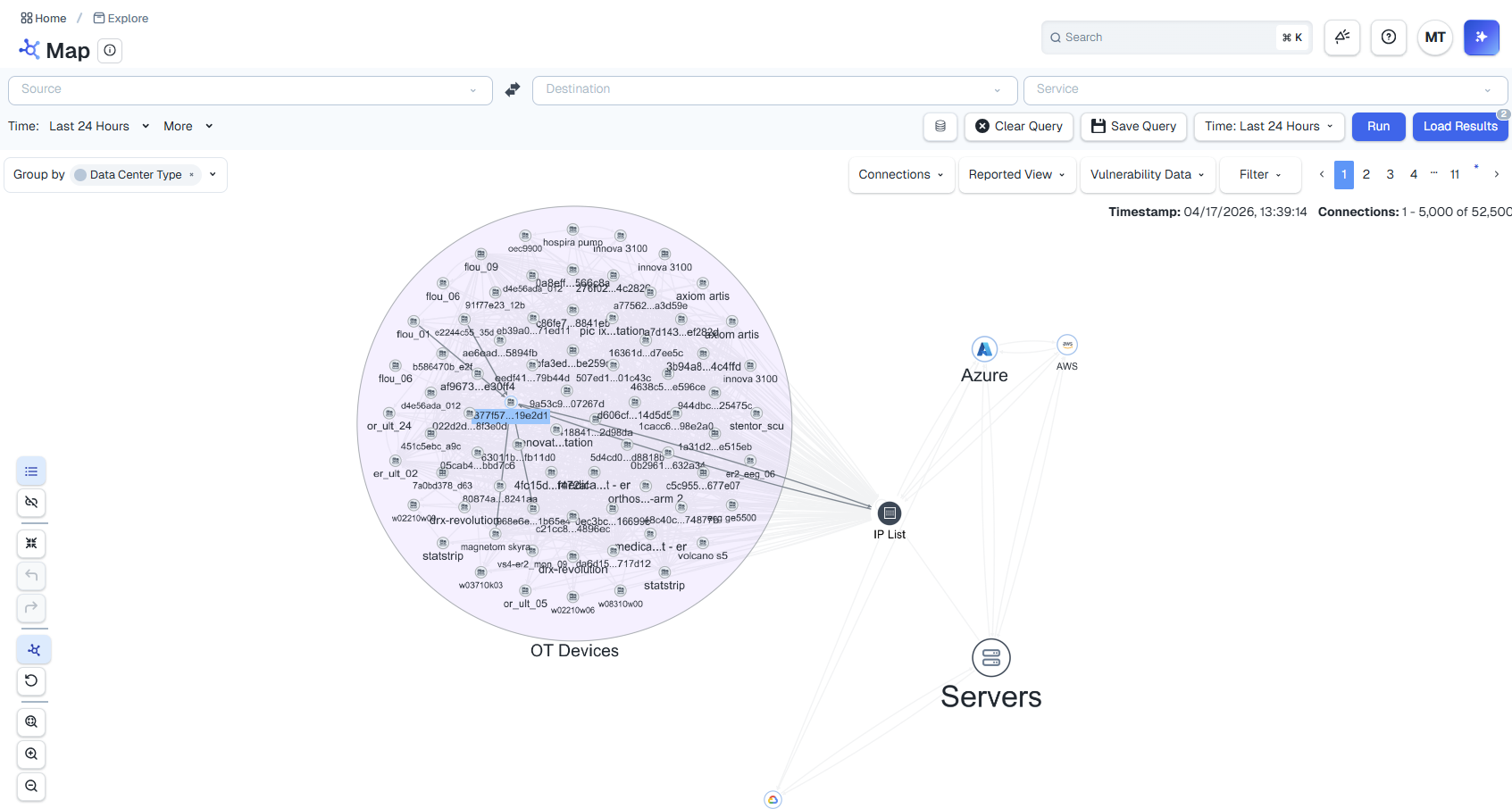
Navigate to Explore > Map and group by Data Center Type.
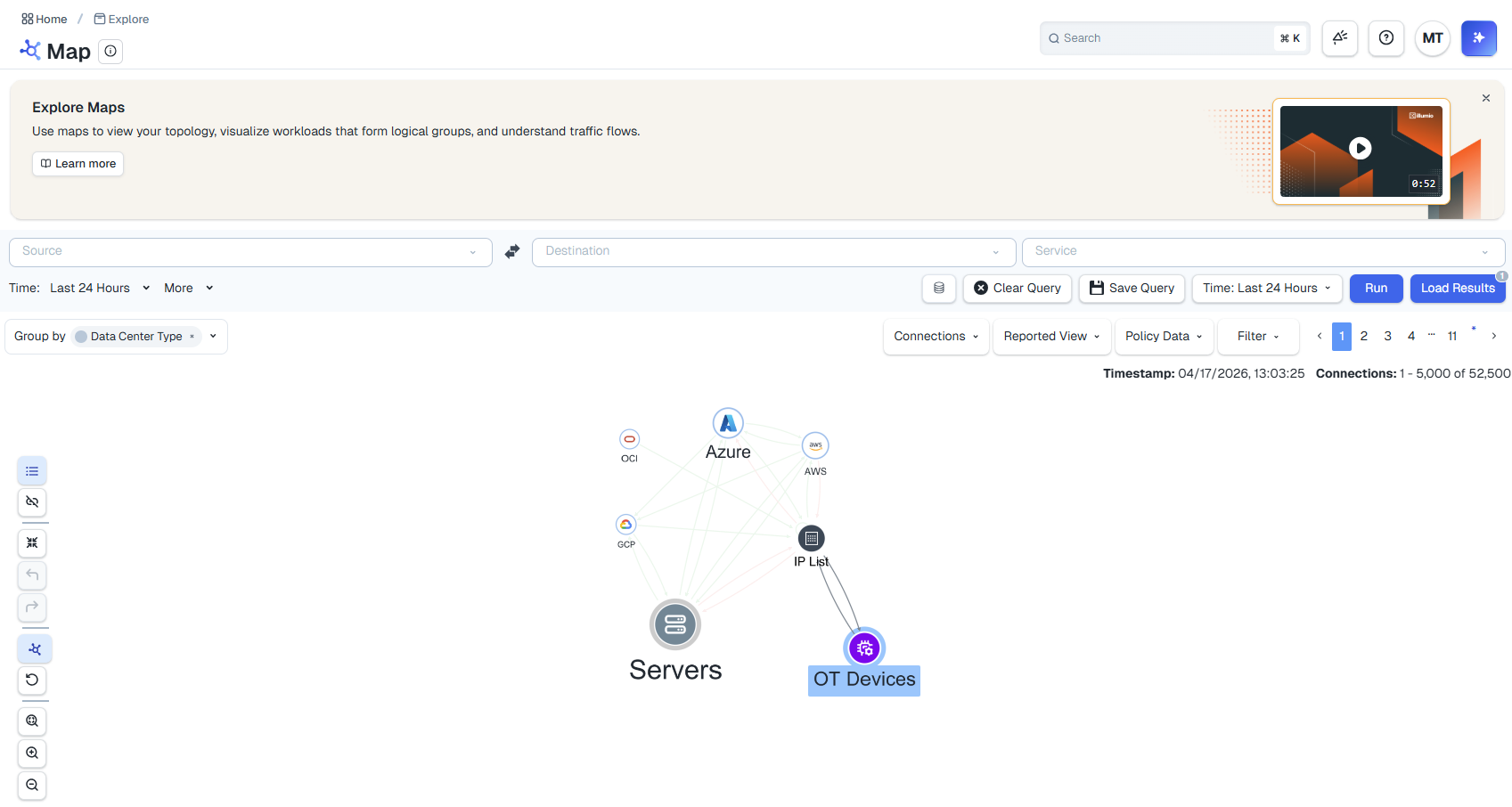
Click the OT Devices group to view the traffic between your resources.
Include additional filters to refine the results. For example, to display only Production devices that are located in Canada, add the Environment and Location filters.
Note
Filtering is context-sensitive. If you click a group, the details pane displays information about the group, and if you click a device, the details pane displays information about the device.
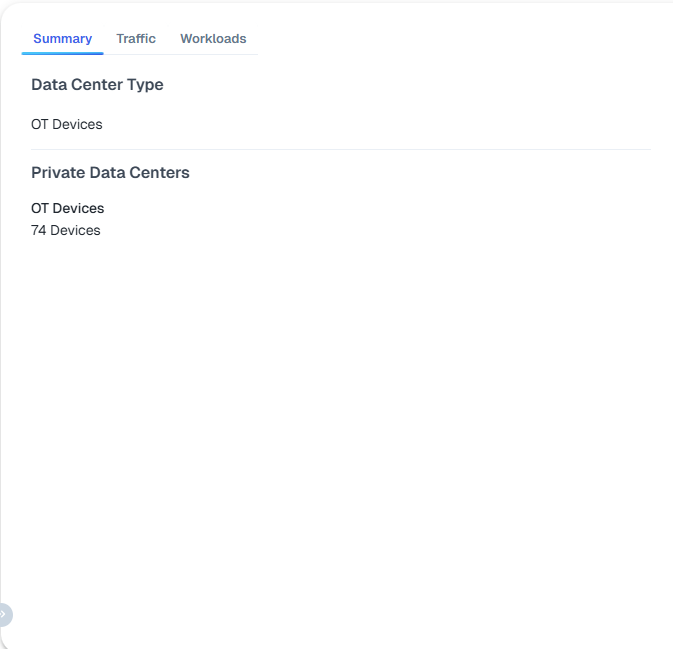
The following figure displays a summary of all OT Devices: