Update Your SAML Configuration After Migrating from Legacy SaaS PCE to Illumio Console
After you upgrade from the legacy SaaS PCE login to Illumio Console, you must update your SAML configuration. To do so, you must update settings in both Illumio Console > Authentication Settings and in your Identity Provider (IdP) SAML application.
Important
Only perform these steps if you want to change your Illumio Console login page to your dedicated tenant URL (subdomain). These steps do not apply if you want to use login.illum.io as your login page.
Step 1: Access Your SAML Configuration
Log into Illumio Console as a Local Owner role user.
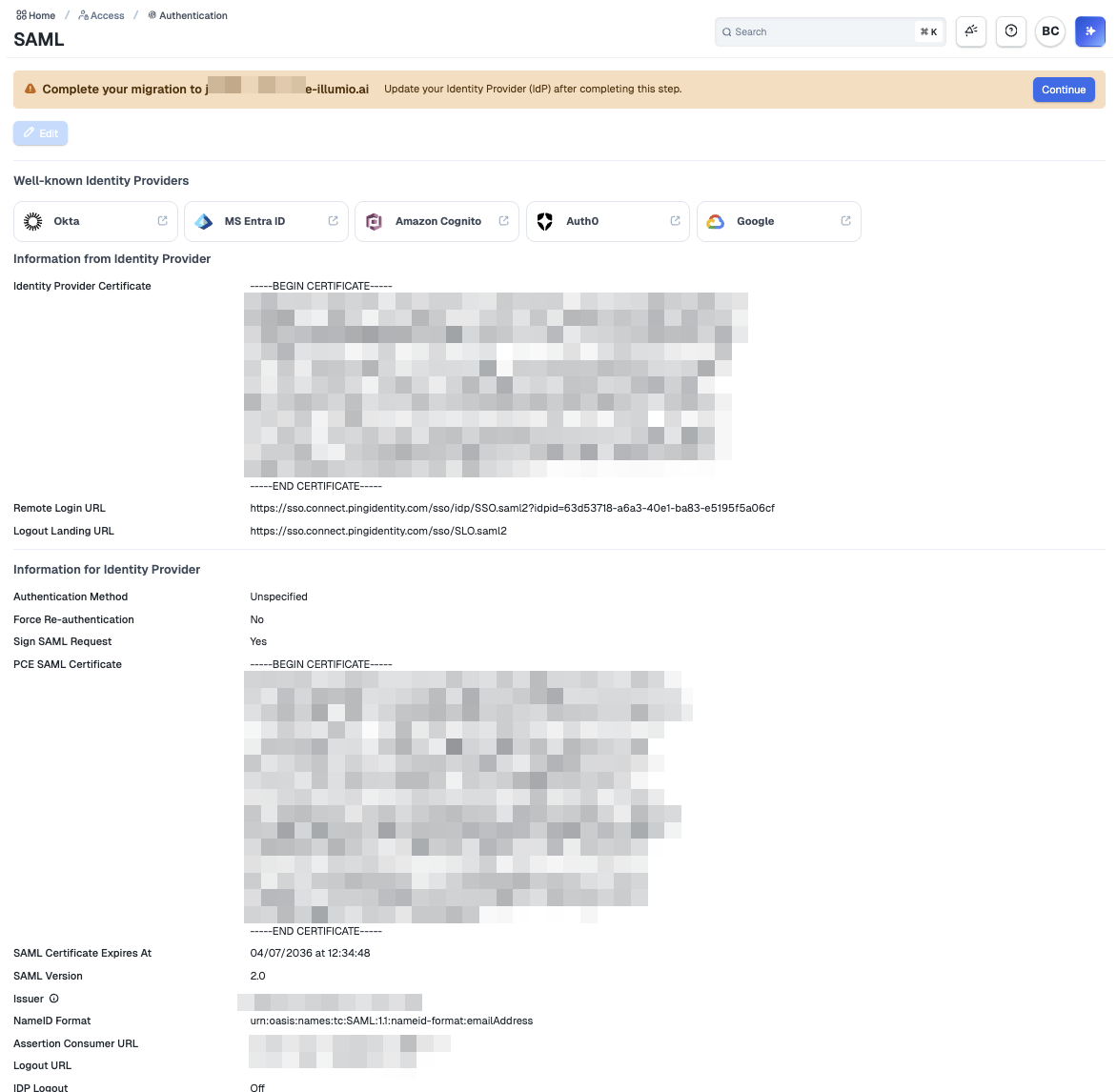
Navigate to Authentication Settings and click SAML. You will see your existing SAML configurations displayed, along with a notification indicating migration steps are required.
Step 2: Initiate the Migration
The migration automatically updates the following values:
Assertion Consumer URL (ACS URL)
Logout URL
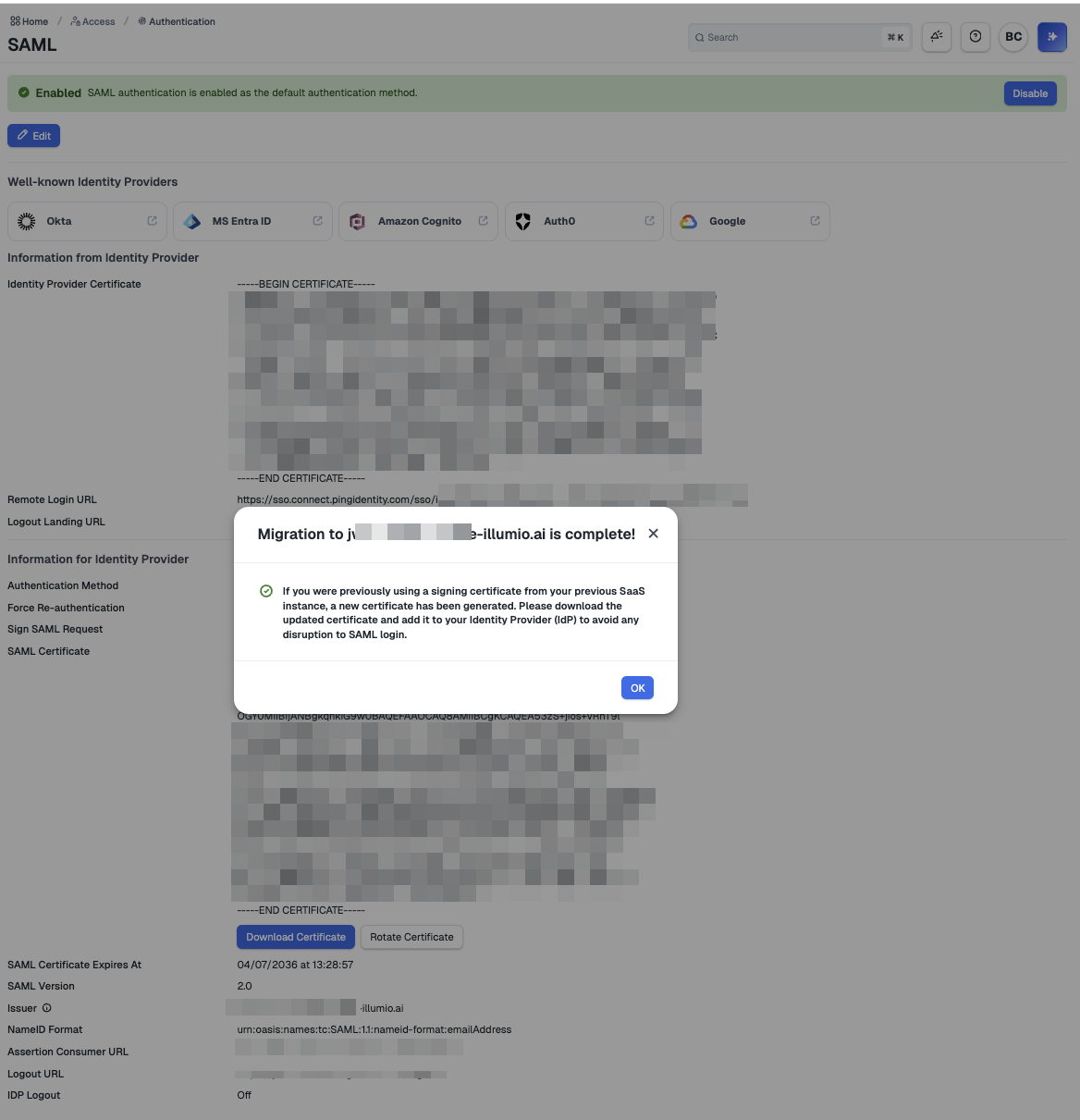
SAML Certificate (if your configuration uses signed SAML requests, a new certificate will be generated)
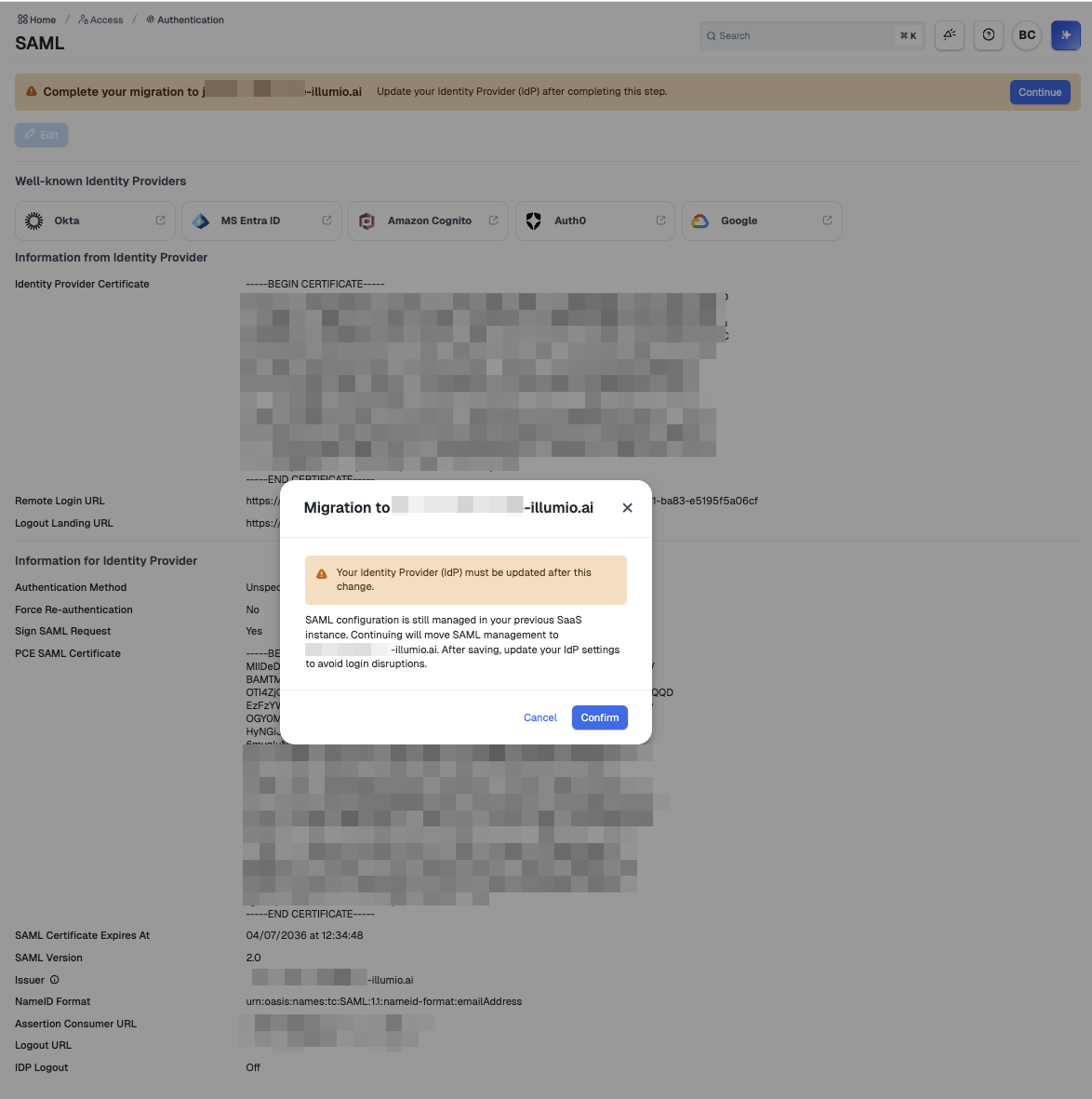
Click Continue on the migration notification and review the pending changes.
Click Confirm after you have reviewed the pending changes.
Click OK to complete the migration.
Step 3: Update the Issuer Value
Update the issuer value to match your subdomain URL.
Note
Do not include a trailing slash. The issuer value is used as the Entity ID in your IdP SAML application, so it must match exactly.
Step 4: Update Your IdP SAML Application
Go to your IdP's SAML application configuration and update the following values:
Note
The settings described in the following table use the subdomain URL https://test1.illumio.ai as an example.
Setting | Old Value (Example) | New Value |
|---|---|---|
Assertion Consumer URL (ACS URL) | https://login.illum.io/login/acs/123456 | https://test1.illumio.ai/login/acs |
Logout URL | https://login.illum.io/login/logout | https://test1.illumio.ai/logout |
Entity ID | https://login.illum.io | https://test1.illumio.ai ImportantThis value must match the Issuer Value in Authentication Settings. |
Signing Algorithm | SHA1 | SHA256 |
SAML Certificate | Upload the new certificate from Authentication Settings if you are using signed requests. |