Disable Traffic Flow Logging
You can prevent specific traffic flow information from being logged by applying a No Log setting to segmentation rules through the Illumio REST API. Once the setting is applied to rules, flows managed by those rules are not reported to the PCE. This is useful for excluding routine or low-value flows from logs, reducing log noise and storage usage, and making it easier to analyze the traffic most relevant to you.
Prerequisites
Before you begin, review these prerequisites.
VEN release 22.5 or later
Requires API access with org-level write permissions
Considerations and Limitations
Review these considerations and limitations before you disable traffic flow logging.
Considerations
No Log Rules control only whether flows matching the rules are logged. They have no effect on policy enforcement.
When a No Log segmentation rule overlaps with a standard segmentation rule (for which logging is allowed), the No Log Rule is evaluated first and traffic flows aren't logged.
All policies (rulesets) shown in code blocks and images are active (provisioned) as examples. You can apply the No Log setting to
draftoractivepolicies, but in either case the No Log setting takes effect only after you provision the policy.The log_flow property appears in API responses only when the
per_rule_flow_log_settingfeature flag is enabled.The terms policy and ruleset are used interchangeably. "Policy" is the term used in the PCE UI. "Ruleset" is the term used in browser developer tools and in API data structures.
The terms target ruleset and target rules refer to the No Log ruleset and rules you're identifying and working with.
Steps for finding
rule_idsin target rules using developer tools (STEP 3, Method 1) are based on the Chrome browser. Dev tools in other browsers may differ.See the Best Practice note in STEP 2 about creating a dedicated No Log segmentation policy.
Limitations
UI support for No Log Rules is currently unavailable.
No visual indication appears in the PCE UI when rules are modified to become No Log Rules.
No Log Rules workflow summary
The target ruleset must contain the target rules you don't want to be logged.
STEP 1: Enable the feature flag
Execute the following curl command.
curl -X PUT
  -u $API_USER:$API_PASS
  -H'Content-type: application/json'
  --data-raw'[{"name": "per_rule_flow_log_setting", "enabled": true}]'
  $PCE_URL/api/v2/orgs/1/optional_features
Execute this command to verify that the feature flag is enabled.
curl -u $API_USER:$API_PASS $PCE_URL/api/v2/orgs/1/optional_features
The following is returned if the enablement succeeds:
{
    "name": "per_rule_flow_log_setting",
    "enabled": true
},
STEP 2: Create a No Log segmentation policy through the PCE UI
Note
Best Practice: Create a dedicated policy for No Log Rules
Illumio recommends that you create a dedicated segmentation policy specifically for No Log Rules and give it an easily identifiable name. Because the PCE UI provides no visual indication when rules are modified with the No Log setting, a dedicated, well-named policy is useful for tracking and troubleshooting purposes.
While a dedicated No Log policy is recommended, it's not strictly required. You can still apply the No Log setting to existing provisioned rules in any policy by editing the rule, enabling "log_flow": false, and provisioning the change. You do not need to unprovision the rule first.
See Create Security Policy and About Rules in the Illumio Security Policy Guide.
STEP 3: Find the rule_id of target rules
You need the rule_id of each rule you plan to change to a No Log rule.
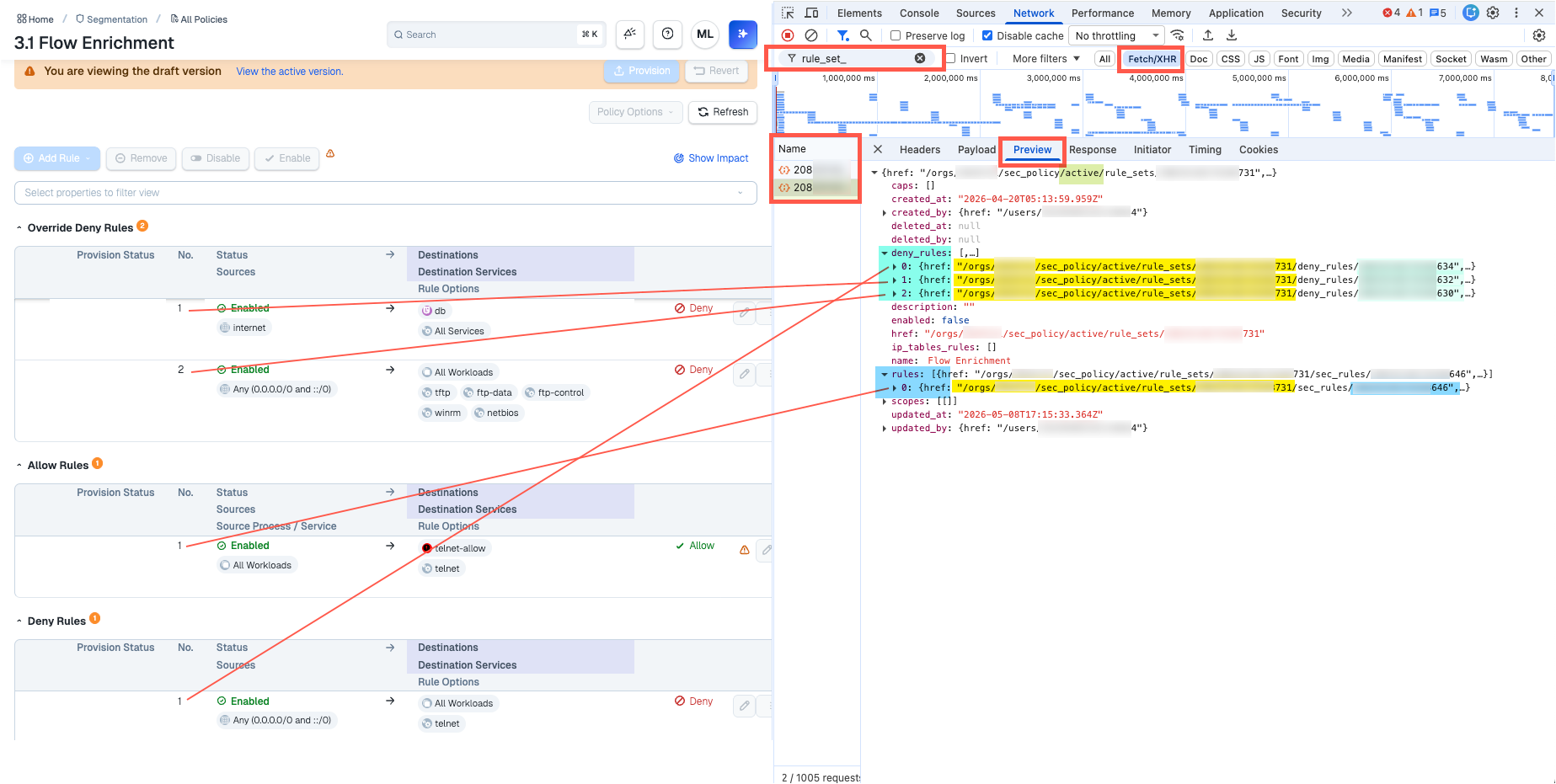
Go to Segmentation > All Policies and open the policy that contains the rules you want to identify.
Take note of the labels, services, and other characteristics (All Workloads; Any 0.0.0.0/0) of the rules you're interested in. This information can help you identify the rules to which you'll apply the setting in coming steps.
In the Preview tab, filter by
rule_setsand enable Fetch XHR.In the
Namecolumn, click the entry that displays the version (draftoractive) of the rules you are targeting.Note: In the following image,
activeis shown in the image only to illustrate how to select one or the other version.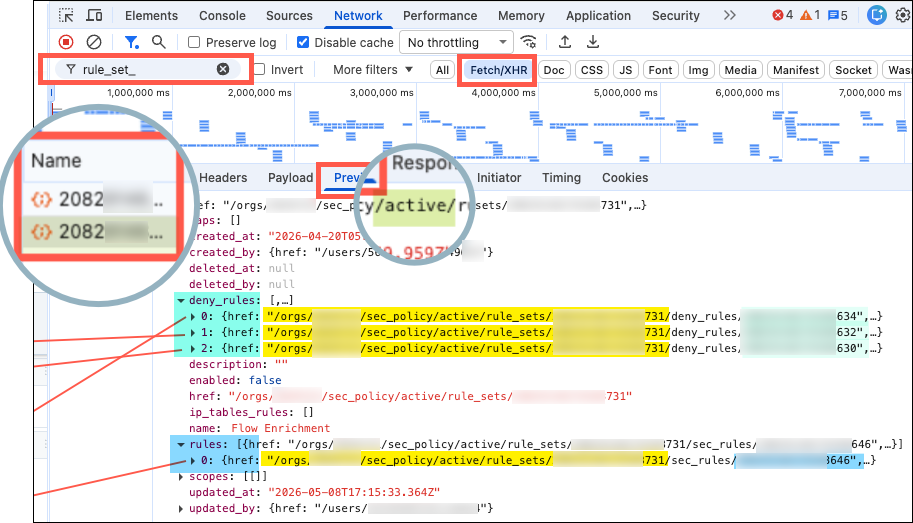
Expand
rulesanddeny_rulesto expose their rule_id. Note their pattern:Allow rule:
/orgs/{org_id}/sec_policy/active/rule_sets/{rule_set_id}/sec_rules/{rule_id}Deny rule:
/orgs/{org_id}/sec_policy/active/rule_sets/{rule_set_id}/deny_rules/{rule_id}
Tip
Tips for finding rule_ids in the browser developer tool
To distinguish rule hrefs from other hrefs, note that if an href contains
/sec_rules/or /deny_rules/, it's a rule.To distinguish multiple rules of the same type, expand the data structure further and search for labels, services, and other identifying characteristcs (All Workloads; Any 0.0.0.0/0) .
The term
"actors" : "ams"in a rule array means All Workloads.
Copy the
rule_idsfor use in STEP 4.
Requires API credentials (see My API Keys in your PCE profile).
Requires your Illumio org ID (hover over your profile initials in the PCE UI).
{pversion}refers to either thedraftoractiveversion of the policy, depending on whether or not the policy is provisioned (active). You can apply the No Log setting todraftoractivepolicies, but in either case the setting takes effect only after you provision the policy.
Find the name of the policy in the PCE UI.
Go to Segmentation > All Policies and make note of the name of the policy that contains the rules that are to become No Log rules. You'll need the policy name to search for the rule_set_ID of the target ruleset in a later step.
Execute a GET comand to return all of the rulesets in your org.
curl -X GET "$PCE_URL/api/v2/orgs/<org_id>/sec_policy/active/rule_sets" \
  -u "$API_USER:$API_SECRET" \
  -H 'Accept: application/json' \
  | jq . # optional: formats JSON output; requires jq
Search the output for the name of the target ruleset you identified step 1 to find its rule_set_ID.
{
    "href": "/orgs/<org_id>/sec_policy/active/rule_sets/{rule_set_id}",
    "created_at": "2026-04-20T05:13:59.959Z",
    "updated_at": "2026-05-12T23:03:15.088Z",
    "deleted_at": null,
    "created_by": {
      "href": "/users/246810121416"
    },
    "updated_by": {
      "href": "/users/246810121416"
    },
    "deleted_by": null,
    "update_type": "update",
    "name": "{ruleset_name}",
    "description": "",
    "enabled": true,
    "scopes": [
      []
    ],
To work with a smaller data structure, Execute a GET command that references the rule_set_id you found in the previous step to generate a rule array for just your target ruleset.
curl -X GET "$PCE_URL/api/v2/orgs/<org_id>/sec_policy/active/rule_sets"/<rule_set_id> \
  -u $KEY:$TOKEN
  -H 'Accept: application/json' \
| jq .
In the output, find target rules by looking for labels, services, and other identifying characteristcs (All Workloads; Any 0.0.0.0/0).
To narrow your search, search by the terms deny_rules and sec_rules:
Deny rule_ids appear in paths that include deny_rules:
"/orgs/<org_id>/sec_policy/active/rule_sets/<rule_set_id>/deny_rules/<rule_id>"Allow rule_ids appear in paths that include sec_rules:
"/orgs/<org_id>/sec_policy/active/rule_sets/<rule_set_id>/sec_rules/<rule_id>"
Copy rule_ids for use in STEP 4.
STEP 4: Apply the No Log setting to target rules
Apply the No Log setting to the rule, making sure to replace the bracketed values with the
rule_idsyou found in STEP 3.curl -X PUT -u "$API_USER:$API_PASS" \ -H 'Content-type: application/json' \ --data-raw '{ "log_flow": false }' \ "$PCE_URL/api/v2/orgs/1/sec_policy/active/rule_sets/<rule_set_id>/sec_rules/<sec_rule_id>"Verify that the No Log Rule is enabled on the rule. Replace the bracketed values with the same values you used in the previous step.
curl -u "$API_USER:$API_PASS" \
  -H 'Content-type: application/json' \
  "$PCE_URL/api/v2/orgs/1/sec_policy/active/rule_sets/<rule_set_id>/sec_rules/<sec_rule_id>"
Provision the policy to send the No Log Rule to the relevant VEN.
Change a No Log Rule back to a standard logging rule
If you need to change a No Log Rule back to a "standard" rule so that its traffic flow information is logged, execute a PUT request to the sec_rules API with the property log_flow set to true.
Execute this PUT request to reset:
"log_flow": true.curl -X PUT -u $API_USER:$API_PASS -H 'Content-type: application/json' --data-raw '{ "log_flow": true }' $PCE_URL/api/v2/orgs/1/sec_policy/active/rule_sets/<rule_set_id>/sec_rules/<sec_rule_id>Execute this GET request to verify:
"log_flow": true.curl -u $API_USER:$API_PASS -H 'Content-type: application/json' $PCE_URL/api/v2/orgs/1/sec_policy/active/rule_sets/<rule_set_id>/sec_rules/<sec_rule_id>
Provision your changes.