Configure Microsoft Entra ID (Azure AD) for use with Illumio AUS
To use Microsoft Entra ID User Groups with Illumio Adaptive User Segmentation (AUS) in Illumio policy, you must first configure Microsoft Entra ID Enterprise Application as described in this topic.
Note
Feature Enablement: Using Microsoft Entra ID with Illumio AUS requires enablement by Illumio. For assistance, contact your Illumio Account team.
Note
Similar support is also available for using AUS with Microsoft Active Directory. For details, see Configure Microsoft Active Directory for use with Illumio AUS.
Key features for Microsoft Entra ID and Illumio AUS integration
This solution includes these features:
Entra ID Group Sync: Support for importing and syncing Entra ID security groups, preserving group names and unique identifiers (such as object IDs or SIDs).
Group Visibility in the UI: Synced Entra ID groups appear in the Illumio Console under the User Groups section with searchable metadata such as group name, unique ID, sync source (Entra ID), and last sync status.
Use Groups in Rulesets: You can select imported Entra ID groups in the Sources field when creating rulesets, allowing you to apply policies based on the identity of the logged-in users.
Full Enforcement: If traffic originates from a workload where the Entra ID-logged-in user session is enforced by an AUS rule in your policy, then the traffic will be allowed.
Prerequisites
Using Microsoft Entra ID with Illumio AUS requires enablement by Illumio. For assistance, contact your Illumio Account team.
Your Illumio organization must be in a particular type of SaaS cluster. Verify this with your Account team.
You must be a user with Entra ID credentials to log in to workloads protected by a Windows VEN.
You must be running these versions of the VEN and the PCE:
VEN version 25.2.30 or later
PCE version 25.4 or later
Limitations for Entra ID and User Groups
Note the following limitations for Entra ID and user groups:
You cannot have a nested group as a member of a group.
You can only write Adaptive User Segmentation policies for users in an immediate group.
Configure Entra ID for use with Illumio AUS
On the Home screen within the Azure portal, click Microsoft Entra ID.
Navigate to Manage > Enterprise Application, and add a new application called Illumio - AUS.
Navigate to Illumio - AUS Enterprise Application > Manage > Provisioning.
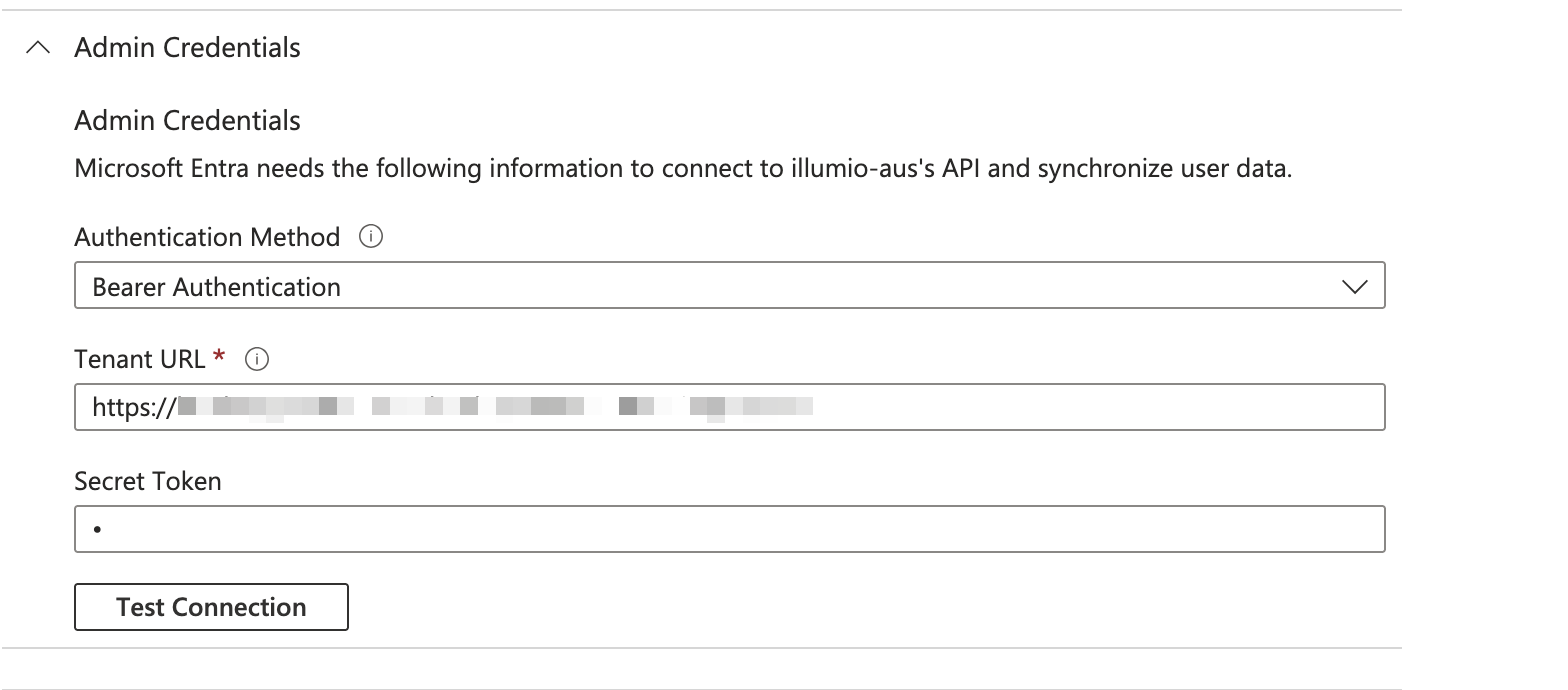
Click Admin Credentials and enter the following information:
Select Bearer Authentication from the Authentication Method drop-down list.
Enter the Illumio PCE URL in the Tenant URL field (for example, {Enter the Illumio PCE URL in the Tenant URL field (for example,
{server1.mycompany.com}/scim/orgs/{orgid}/).Create a PCE API key within the Illumio PCE.
Add the secret token to the Secret Token field using the following format: {api_key}:{secret}.
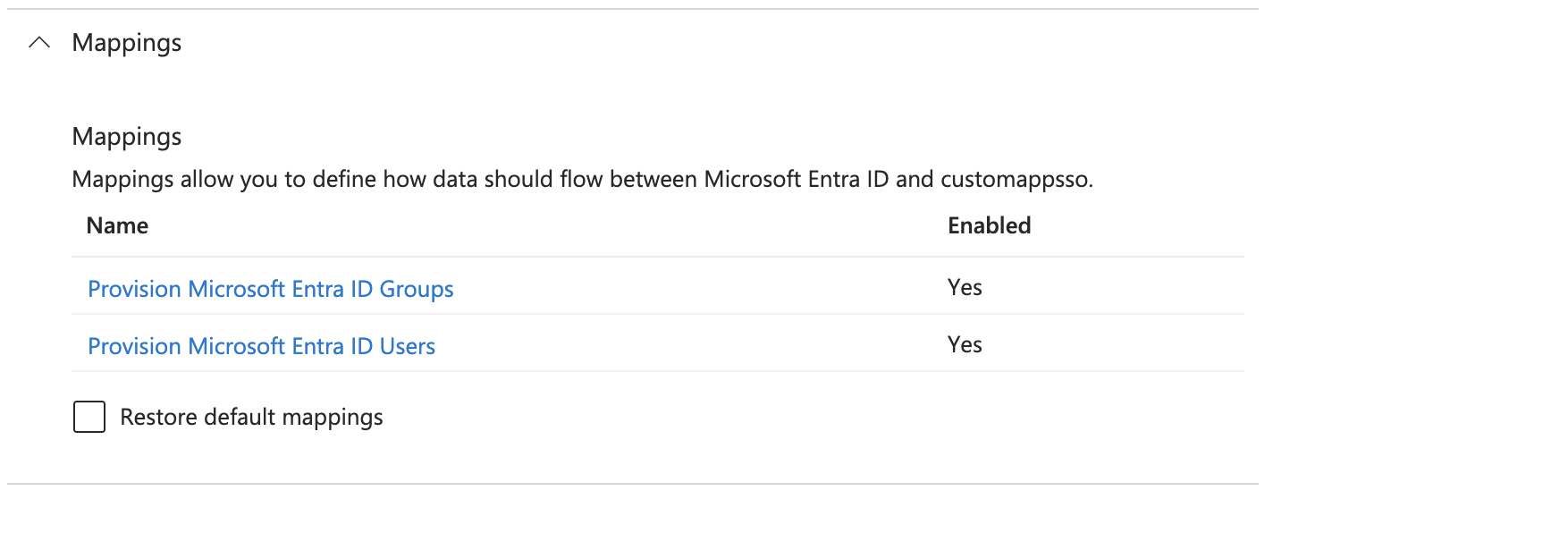
Navigate to the Mappings section.
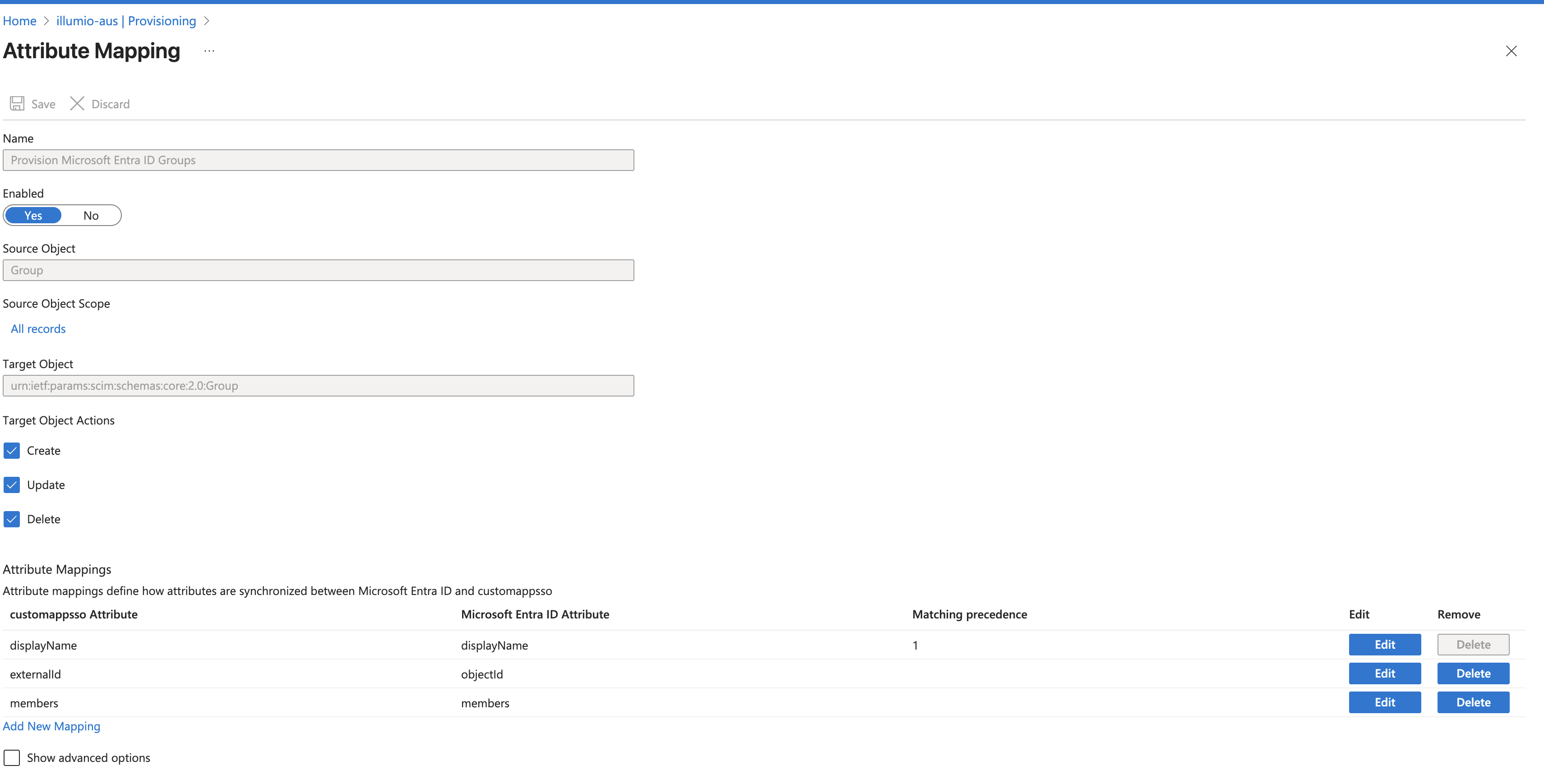
For Provision Microsoft Entra ID Groups, enable the attributes.
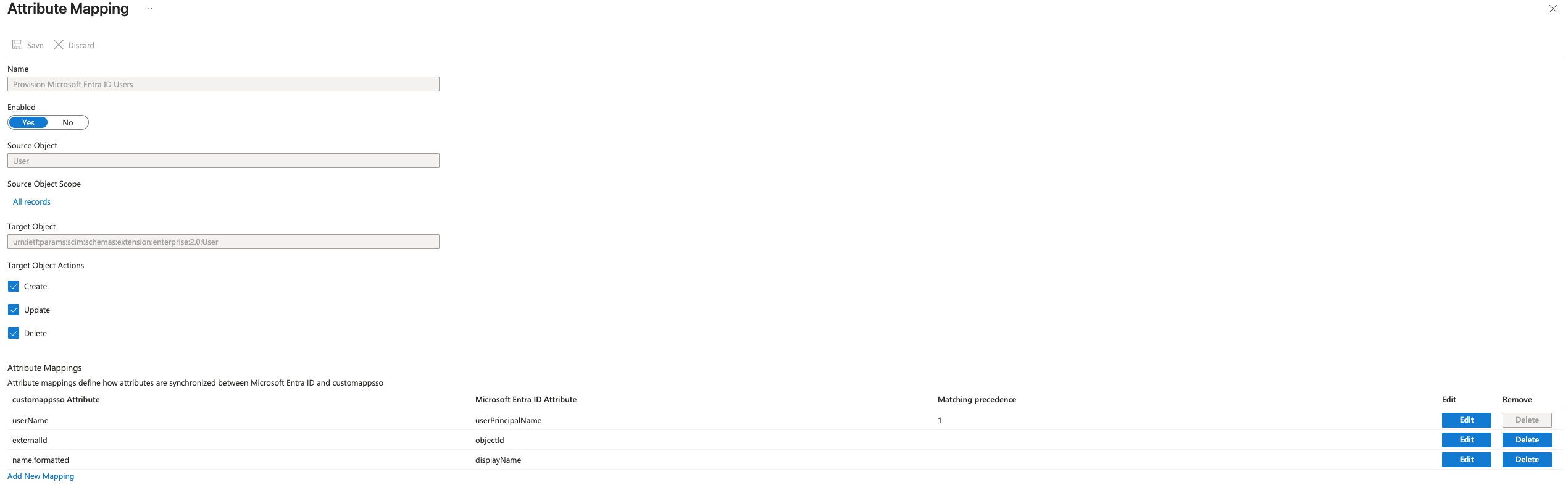
For Provision Microsoft Entra ID Users, enable these attributes:
Note
It can take some time for provisioning changes to propagate. This is an Entra ID limitation.
Navigate to Settings, and set the scope to Sync only assigned users and groups.
After Entra ID provisioning starts, Entra ID periodically pushes group and user information to the PCE automatically. The information eventually appears in Policy Objects > User Groups. This automated operation differs from the manual steps required for integrating AUS with Microsoft Active Directory (described in Adaptive User Segmentation).
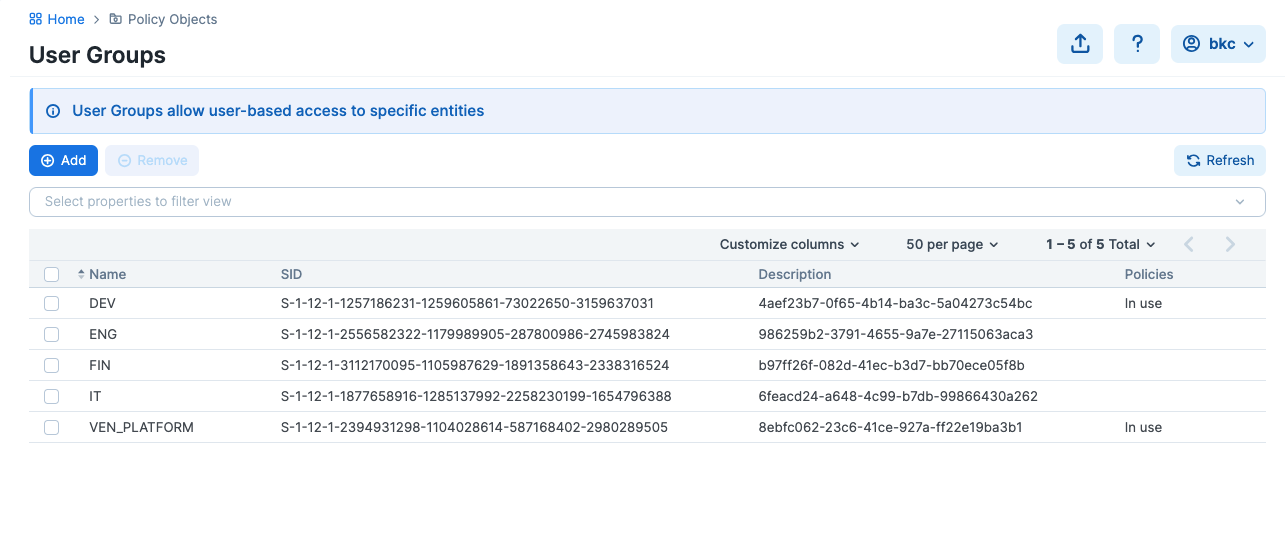
After the User Groups list is populated, you can use the user groups to write policies. (See Adaptive User Segmentation.)
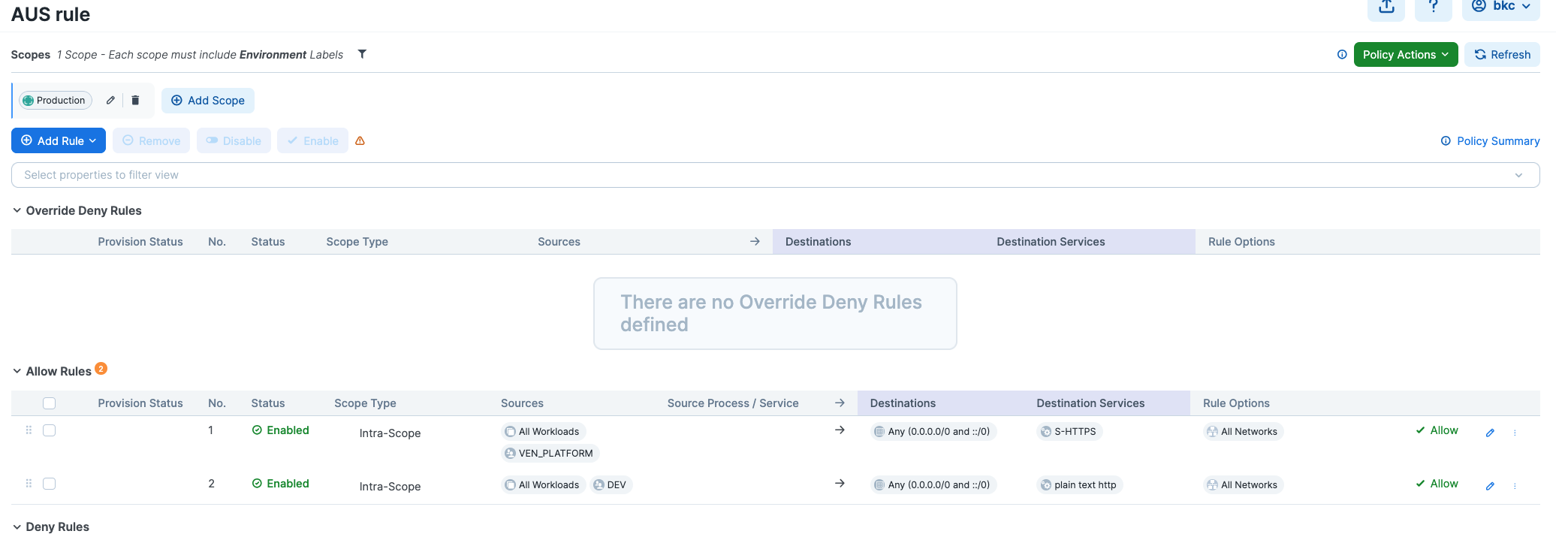
Here is an example of a policy that allows egress traffic from all workloads with users in the DEV user group to all destinations on port 80/TCP:
Set Up the VEN for Entra ID for AUS
Use Entra ID credentials to log in to the workload where the VEN is installed and the flow is enforced. Entra ID provisioning does not take effect immediately in the VEN, so you may have to log out and log back in for provisioning to occur.