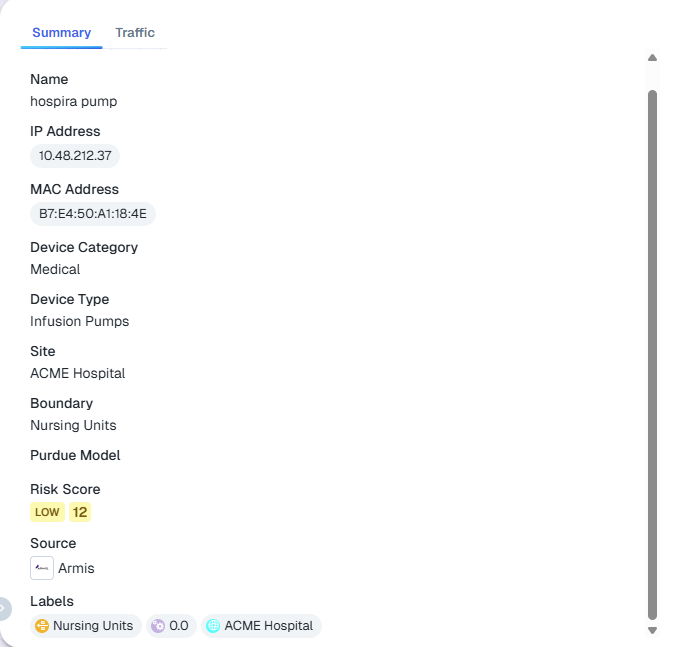
View Data from Armis Devices
Traffic from Armis devices displays in the Devices tab and in the Map screen.
View Armis Traffic in the Devices Tab
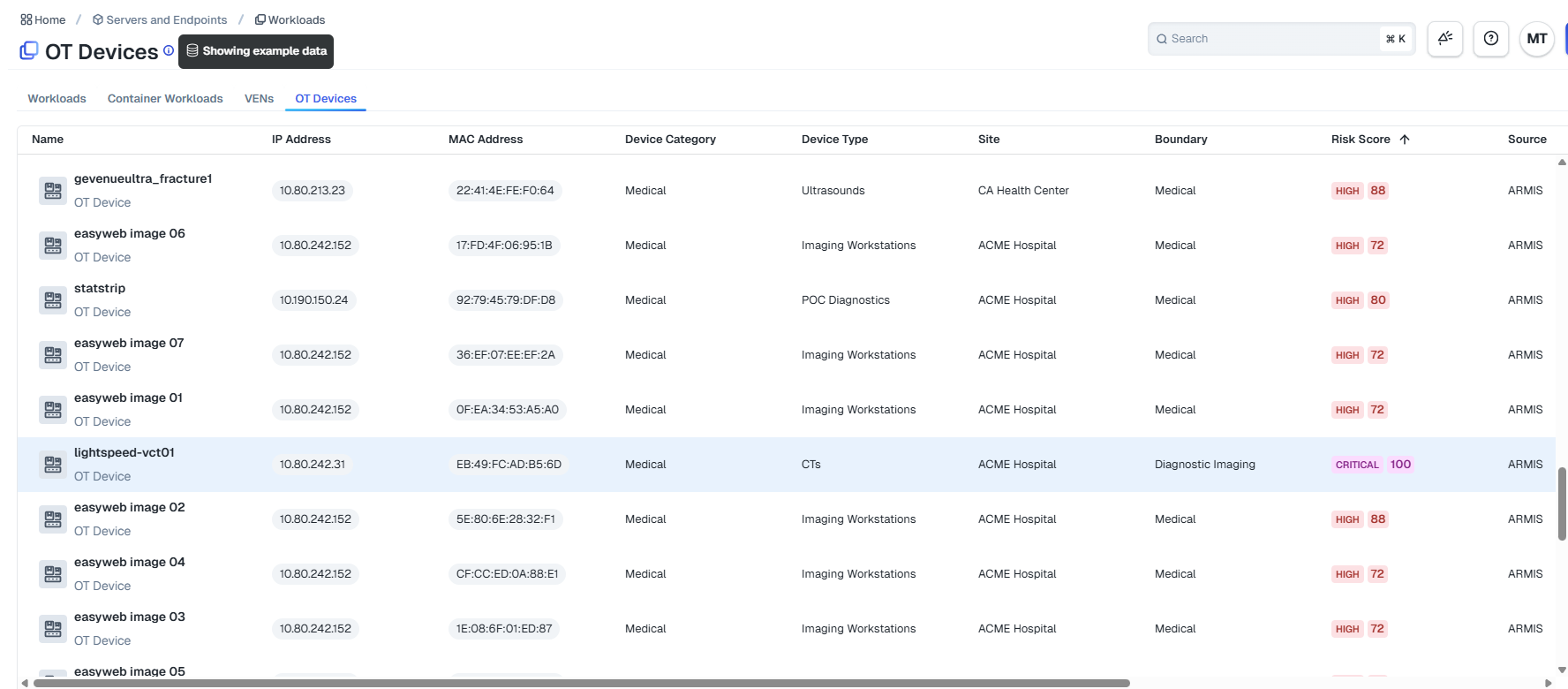
Within Illumio Console, navigate to Servers & Endpoints > Workloads > Devices.
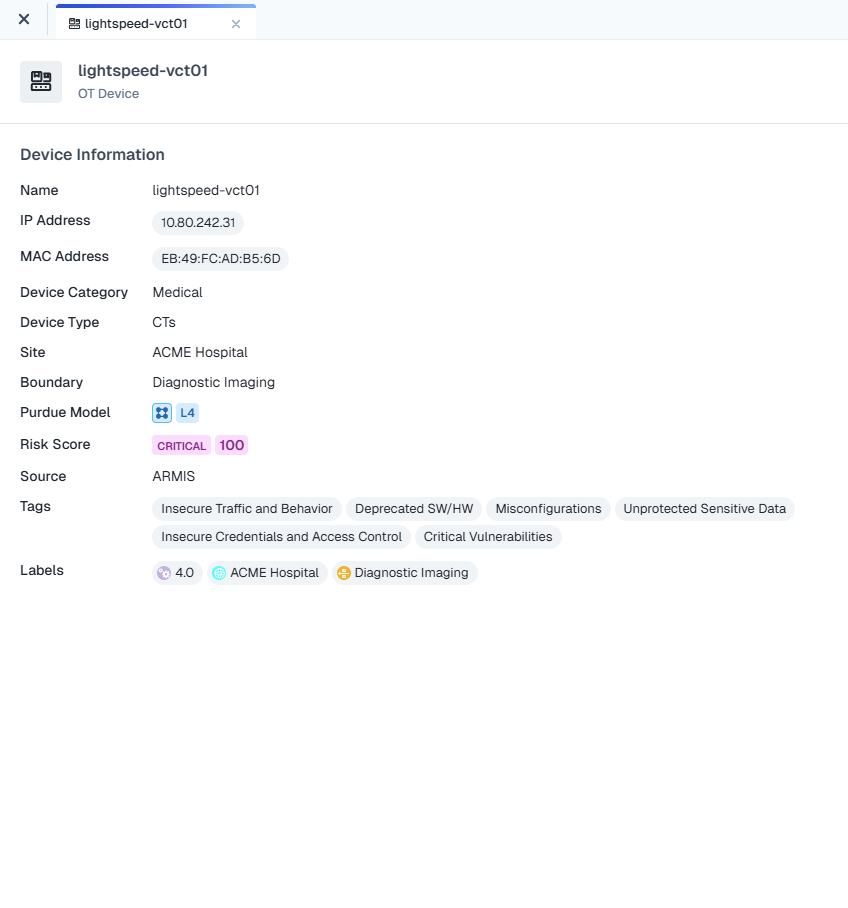
To view details, hover over a device and click Details or click any column in the device row to view the detail pane.
View Armis Device Traffic in the Map Screen
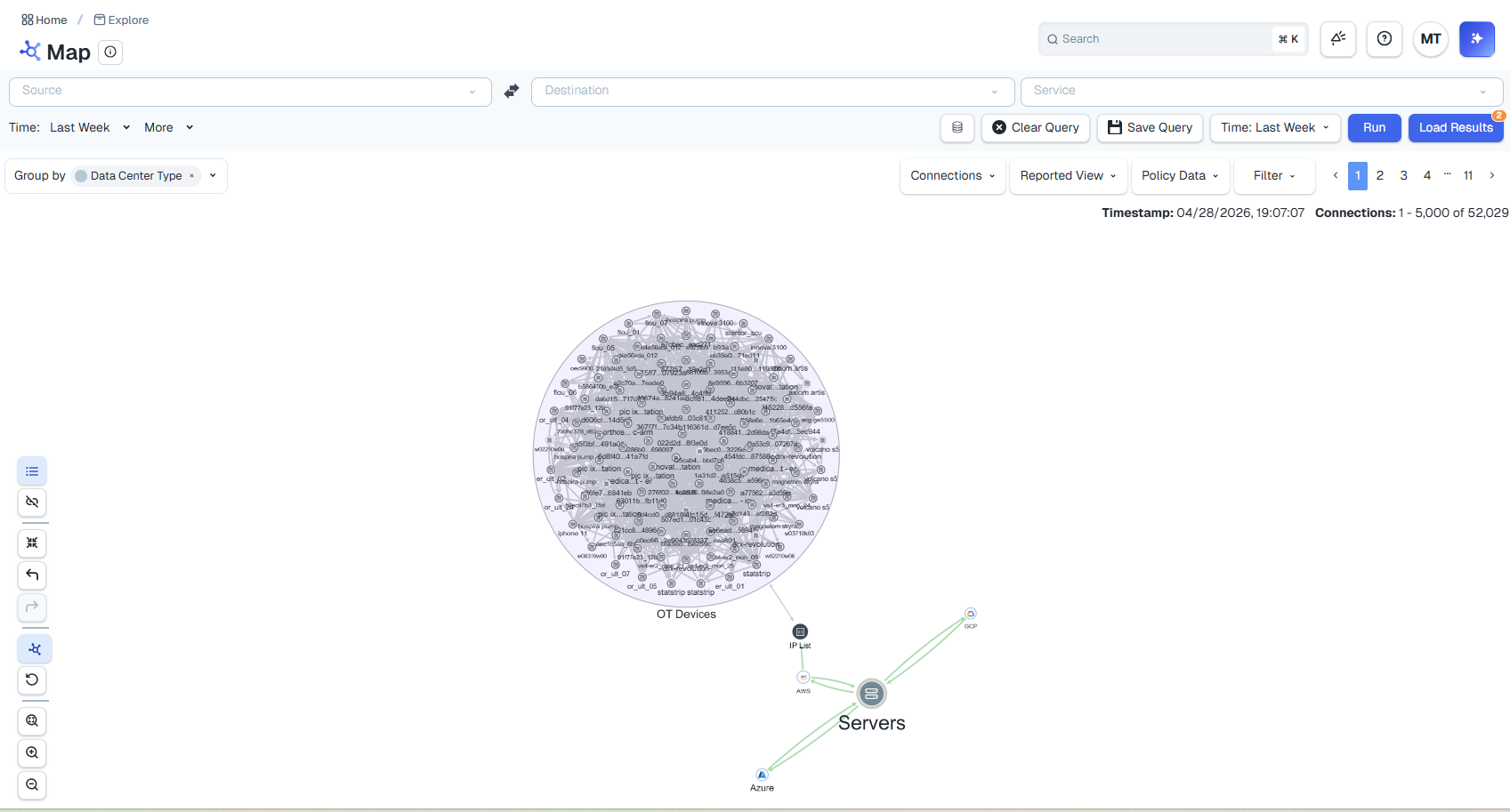
Within Illumio Console, navigate to Explore > Map and group by Data Center Type.
Click the OT Devices group to view the traffic between your resources.
Include additional filters to refine the results. For example, to display only Production devices that are located in Canada, add the Environment and Location filters.
Note
Filtering is context-sensitive. If you click a group, the details pane displays information about the group, and if you click a device, the details pane displays information about the device.
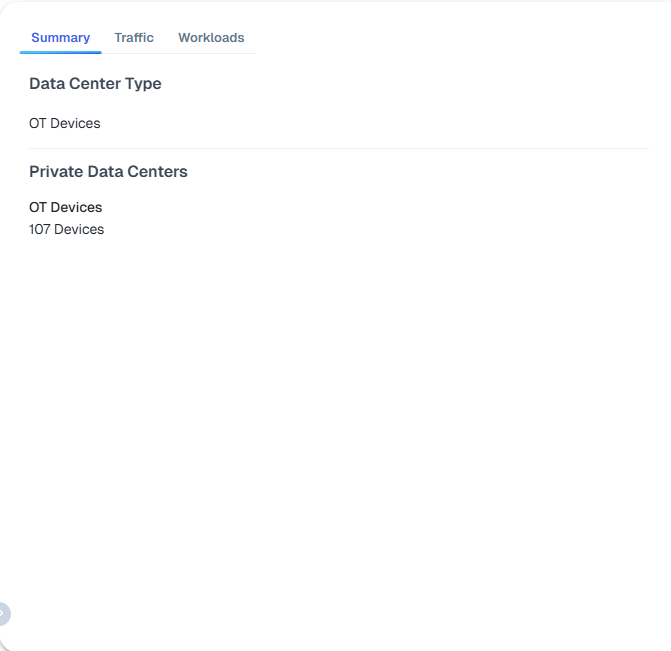
The following figure displays a summary of all OT Devices:
The following figure displays the detail pane for an individual OT device: